Apple DeviceCheck Integration
This section covers the integration between Approov and Apple's DeviceCheck feature. If this integration is used then the Approov SDK forces the iOS device to generate a token that is passed to the Approov servers. This can then be checked with Apple and proves that the token was generated on a real iOS hardware device. This provides an additional level of protection against any spoofing attempts.
If the DeviceCheck lookup was successful then information about the device is persisted in the app's storage and included in any subsequent Approov token fetches. This provides the per-device data made available, consisting of two bits and the last update time of that state (with a month granularity). This approach means that the device only needs to fetch a new device token if subsequent changes need to be made to its state. This is more efficient since fetching such a token (and calling the Apple APIs to obtain the state) would otherwise introduce significant additional latency.
It is possible to cause a particular physical device to be banned if a specific bit of its state is set. This feature is particularly useful if there is suspicion of malicious or fraudulent activity occurring via the continual re-installation of an app on the same physical device. The app itself may be unmodified and running in a clean environment so would receive a valid Approov token. This feature allows a specific physical iOS device to be banned once fraudulent activity has been detected on it so it is not able to receive valid Approov tokens again.
A capability is provided to allow your backend servers to update the state as required, without having to directly deal with the logistics of obtaining a device token and calling the Apple APIs.
Apple's DeviceCheck is only supported from iOS 11, and not all older hardware devices have the secure enclave needed to implement it. If you allow your app to be installed on earlier versions of iOS, or on devices without the required hardware support, then they will not be protected by DeviceCheck.
If this option is used then the iOS Approov SDK must make a call to generate a token to identify the device. This needs to be done on the first Approov fetch after launching the app for the very first time. Performing this operation requires additional network connection(s) and CPU processing time, over which the Approov SDK has no control. This can substantially delay the fetch operation on the iOS platform by adding up to 2500ms of additional latency.
DeviceCheck Concept
As discussed in Device ID Stability, the device ID reported on iOS automatically changes if an app is removed and then reinstalled. This is to preserve the privacy of the end user, as otherwise it would be possible to track an individual indefinitely via the device ID reported on their device. However, the inability to track specific devices creates some challenges with blocking specific malicious or fraudulent behavior emanating from a particular device. If blocking is based on a device ID then the malicious actor can always circumvent any banning via reinstallation of an app. IP based blocking can also be evaded by the use of proxies.
Apple have recognized this as an issue and have introduced the DeviceCheck feature to provide some very limited tracking of specific physical devices that maintains user privacy. The facility allows up to two bits to be recorded for each physical device for each Apple developer account. These bits can be used to record information such as the detection of some fraudulent behavior on the device.
Obtaining the bit status values and updates to them is performed by calling an Apple server API. In order to identify the device to this API it is necessary to obtain a Device Token. This is an ephemeral token (approximately 3KB in size) that identifies the device. Of course to prevent this itself being used to identify the device, and breaking the privacy policy, it is derived from a randomly generated nonce value so is different every time even on the same device. Since accessing the Apple API requires an authorization key this cannot be done in the app itself, since if this key was extracted it could be used to make arbitrary bit changes for other devices. Thus the API calls must be performed server side, necessitating that a protocol be established to communicate the DeviceCheck token from the mobile app to the server.
The Approov integration of DeviceCheck handles all of this integration complexity. If a DeviceCheck key is added to the Approov account, then the Approov SDK automatically collects and transmits the DeviceCheck tokens to the Approov servers. This token is then used to get and update the status of the device physical bits and prevent banned devices from being issued with valid Approov tokens. The simple check of the validity of the token also ensures that the traffic is emanating from a real iOS hardware device.
The status of the DeviceCheck will be reflected in the device property flags:
devicecheck-ban: Indicates a permanent device ban associated with the physical device.devicecheck-apple-err: Indicates a problem using the Apple endpoint, possibly due to an invalid AuthKey. Use theapproov devicecheck -getcommand to perform a check on the validity of the key provided.devicecheck-completed: DeviceCheck has been completed on a device.devicecheck-failed: DeviceCheck has failed indicating that the provided device token was not valid.devicecheck-performed: DeviceCheck has just been performed on a device.devicecheck-unavailable: Indicates that the DeviceCheck capability is not available on the device.
These flags are used in various Rejection Policies to determine if a valid Approov token should be issued. Note that by default the receipt of a DeviceCheck token is not mandatory. However, if the option flag require-devicecheck is asserted then all iOS devices must complete DeviceCheck or else they will be rejected with failed-requirement.
If are you using the option require-devicecheck and there was a failure getting or processing the DeviceCheck token then subsequent Approov token fetches will make further attempts. If you are not using the option then no further attempts will be made until the app is restarted.
There is a known problem with the usage of DeviceCheck on a small number iOS 14 devices. This manifests itself by the Apple servers not recognizing the device token, which causes Approov to report devicecheck-failed. An upgrade of the iOS version on the device fixes the problem.
Getting the DeviceCheck Key
In order to use the Approov DeviceCheck (or AppAttest) integration you need to add an Apple authentication key to your Approov account. This key only needs permissions to access and update the two bits provided for physical device. This is used by the Approov servers to dynamically query the Apple servers when new devices are added, and to update the settings of the bits if a particular device is being banned (or subsequently unbanned).
Log into your Apple Developer Account, click on Account on the top menus, login and then navigate to the "Certificates, IDs & Profiles page". Here you will see the list of keys and certificates that have been issued for your account, such as this below.
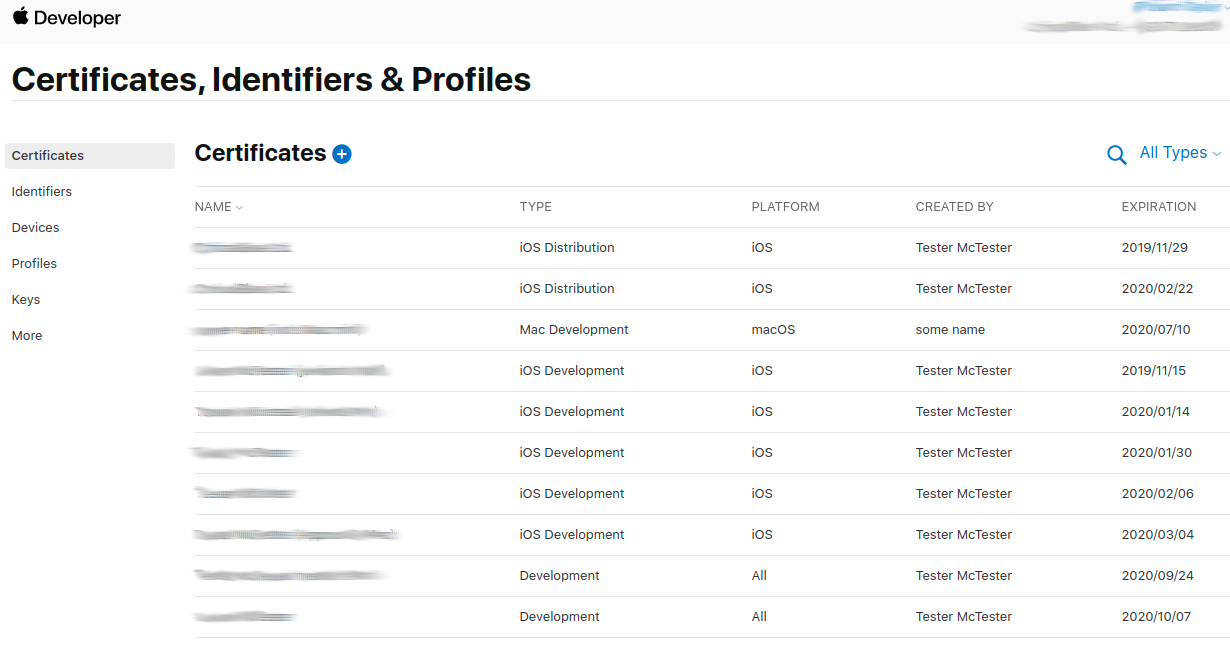
Select the "Keys" menu on the left hand side to navigate to the keys that have been issued for the account.
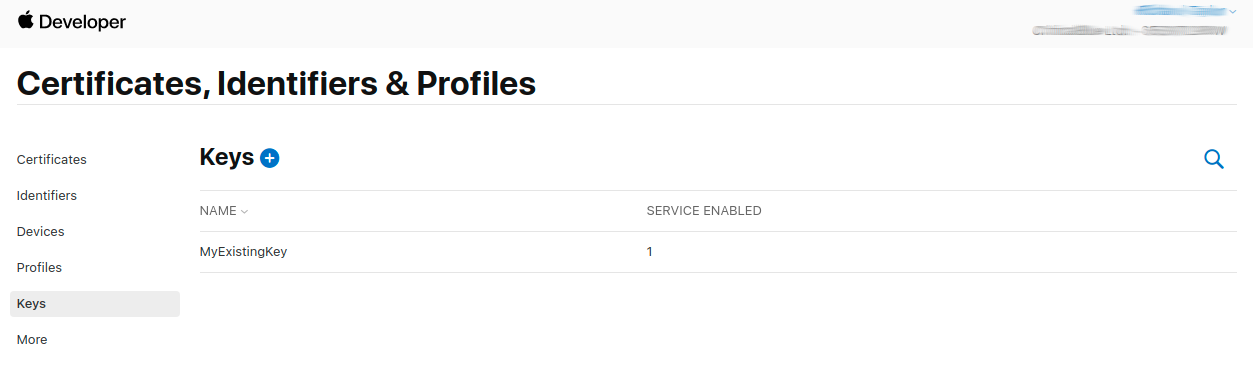
You need to click on the blue plus button to add a new key. Type in the name of that you want to call the key (you an choose anything that is meaningful to you) and click the option for DeviceCheck.
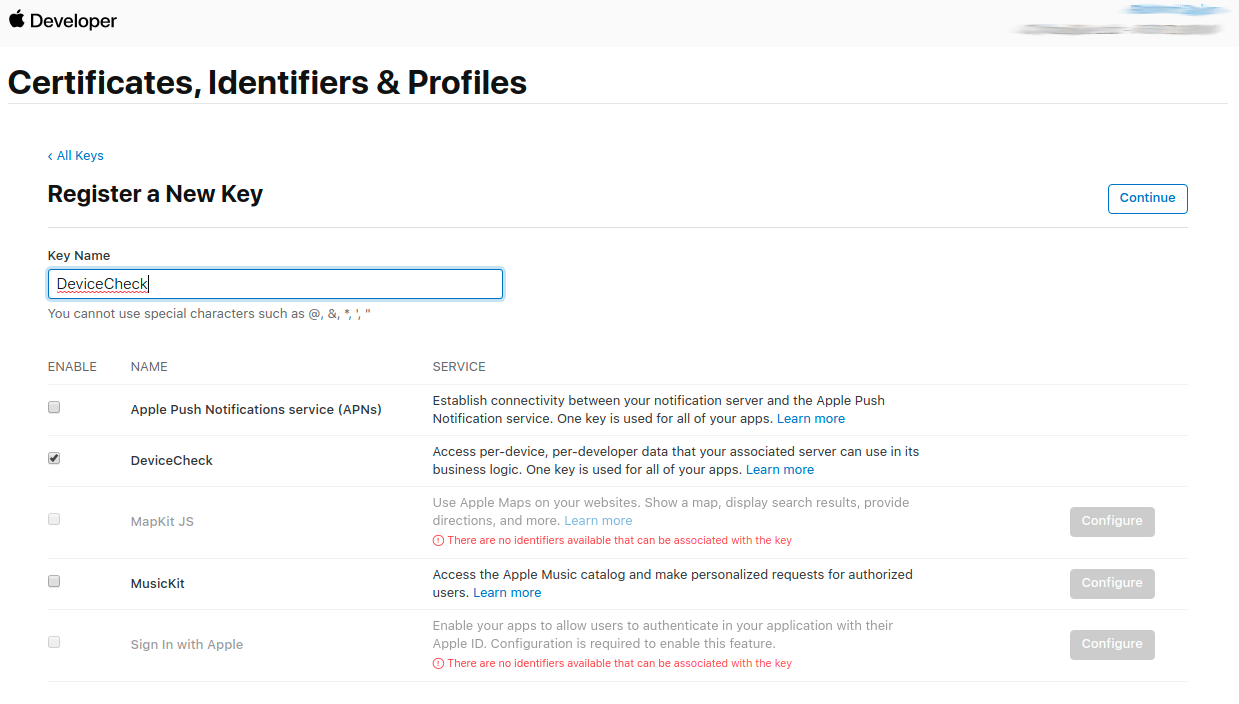
You then press the "Continue" button and a dialog will be shown asking you to confirm the key addition.
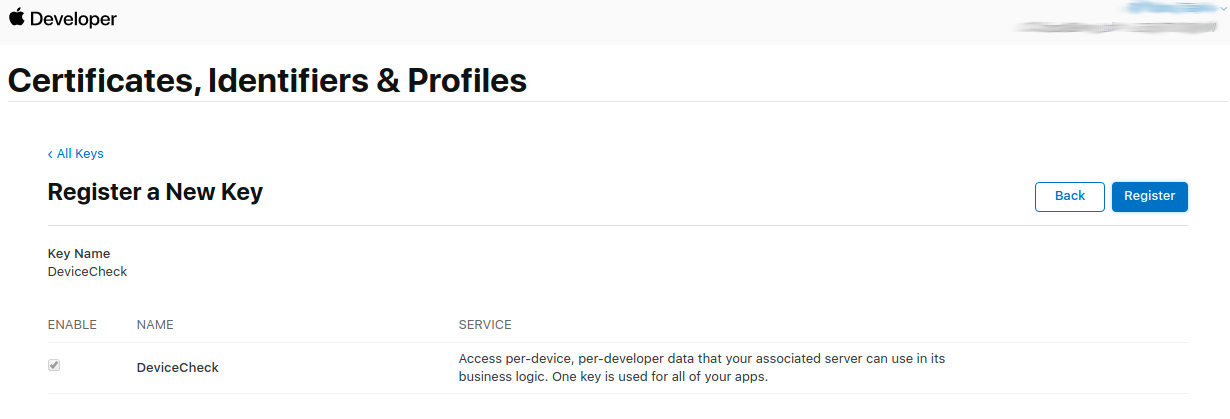
Click Register. You will then be provided with a dialog that gives you an option to download the private key that has been generated. Click this button. You will only get once chance to download this key so make sure the file is saved somewhere that is accessible for the next steps.
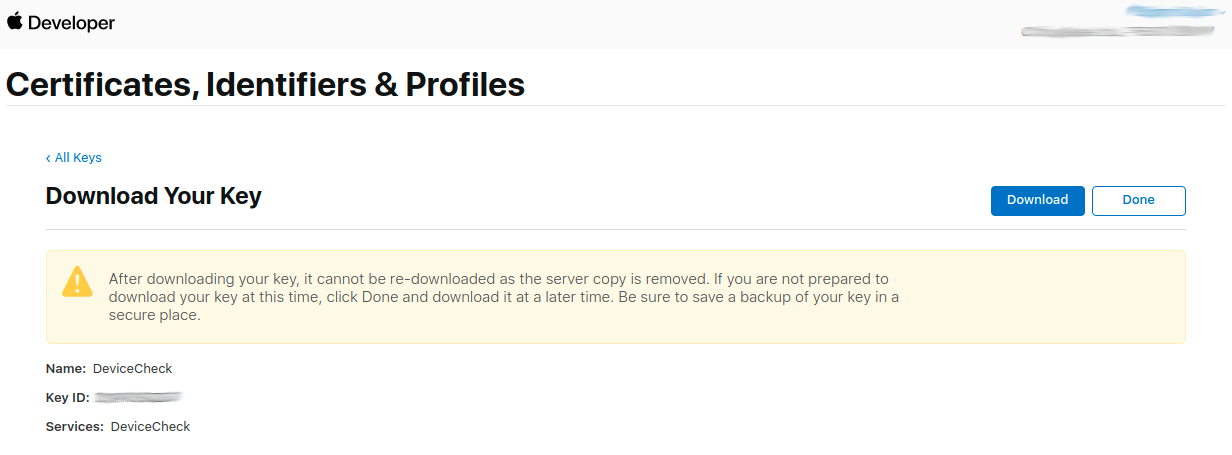
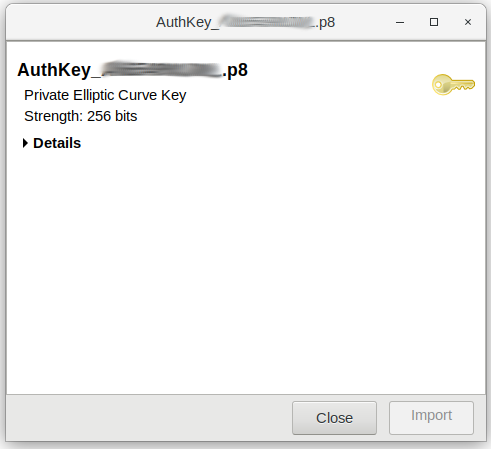
When the key is downloaded you will get a dialog such as the below with details of the key. The .p8 file itself should have been written to the Downloads folder that your browser uses by default. Also make a note of the Team ID value shown on the top right of the screen next to your company name. You will also need that.
In order to get the state it is also important that the app requesting a DeviceCheck device token needs an explicit App ID defined in your developer account, as discussed here. This failure will be reported as a devicecheck-apple-err.
Setting the DeviceCheck Key
Now that you have a private key you need to make it accessible to Approov.
approov devicecheck -addAuthKey AuthKey_XXXXXXXXXX.p8 -teamID YYYYYYYYY
You will need an admin or delegate role and confirmation to do this, and confirmation is required:
WARNING: this will have an immediate impact on your apps in production
ATTENTION: If you wish to continue then please type YES and return: YES
The file AuthKey_XXXXXXXXXX.p8 is the private key file you downloaded and YYYYYYYYY is your team ID.
Now that this information is added to your Approov account, the Approov cloud servers are able to contact the Apple servers to validate the device token and obtain the device state. You can confirm that the information has been recorded with:
approov devicecheck -get
Which will generate output such as:
TeamID: YYYYYYYYY
KeyID: XXXXXXXXXX
Expiry: 12m
BanBit: none
Apple Endpoint: Production
If there is a problem with the information provided, and it is not possible to authorize with the Apple servers then you will see WARNING: Apple Authorization Error with the message from the Apple servers.
Reading the Device State
If the DeviceCheck device state can be read then it is subsequently included in all Approov tokens fetched on the device. The information is provided in the device_state claim, such as the follows:
{
  "arc": "B3Y5SLMO2K",
  "did": "qZka0yfv+ExvOq3PRh6pGw==",
  "exp": 1737315084,
  "device_state": {
    "bit0": false,
    "bit1": true,
    "last_update_time": "2025-01"
  }
}
Your backend integration can read this information from a valid Approov token and then change the behaviour accordingly. Your logic must always be able to cope with the device_state not being presented, as it will not be for Android devices or for certain iOS devices that do not support this capability.
The device state could be used for security purposes (perhaps requiring additional checks if a certain bit is not set), or can be used for some other purpose not directly related to security concerns.
Banning Based on Device State
As discussed in Forcing a Device ID to Fail, it is possible to prevent a particular device ID from receiving valid Approov tokens. However, reinstallation of the app on the same device may generate a new device ID and evade the ban. If you are using DeviceCheck then a permanent ban for a particular physical device can be instigated.
To enable this you must setup the DeviceCheck configuration again, with the addition of the optional -banBit option, such as the following:
approov devicecheck -addAuthKey AuthKey_XXXXXXXXXX.p8 -teamID YYYYYYYYY -banBit bit0
This indicates that the device should receive failed Approov tokens if bit0 of its state is set. You can also set bit1 or both (requiring both bits to be set for a ban). Simply apply the configuration without the -banBit option to remove the ban completely.
If you have previously used the Apple DeviceCheck facility then the bits will not be set. If you have used the facility before and bits are set then this may cause those devices to be banned. In this case you may use the -expiry option as well to ignore settings made more than a certain number of months ago. Thus devices will fall out of their ban state after a configured number of months.
When a particular device is banned it is across all apps associated with the same Apple developer account, even if these apps are associated with different Approov accounts. This is because Apple stores the bit states on a per-developer account basis. If you are using multiple Approov accounts associated with a single Apple developer then you may select different bits on different accounts to avoid interference.
Updating the Device State
A capability is provided to allow your backend servers to update the state for a particular device using the Installation Attributes update mechanism.
To do this you must created a valid installation attributes token that includes a claim new_device_state, such as the following:
{
  "did": "qZka0yfv+ExvOq3PRh6pGw==",
  "new_device_state": {
    "bit0": true,
    "bit1": false
  }
}
This claim contains the desired new states of bit0 and bit1 for the device. Providing this will arrange for a new device token to be fetched by the device, and the Approov cloud service will make the call to Apple APIs to set the new state. If the state is updated then it will appear in the device_state claim of Approov tokens from the device on an ongoing basis. Note that the new_device_state will not appear in the embed claim of Approov tokens.
Removing the DeviceCheck Key
The DeviceCheck authorization key can be removed from the account at any point, if an admin role is available, as follows:
approov devicecheck -remove
You will need an admin or delegate role and confirmation to do this:
WARNING: this will have an immediate impact on your apps in production
ATTENTION: If you wish to continue then please type YES and return: YES
DeviceCheck information removed
This will disable all lookups of DeviceCheck. Any ban will remain for a particular app installation, but if the app is reinstalled then the ban will not follow. If the DeviceCheck key is subsequently set again then the banning of the same devices will be reinstated since the Apple bit state will have been persisted.