Google Play Integrity Integration
This section covers the integration between Approov and Google's Play Integrity attestation feature. It allows enhanced assessment of the integrity of the app and device, and provides additional signals that Approov uses to check for rooting or modified devices.
The Approov Play Integrity integration provides a nonce value to prevent the replay of Play Integrity tokens. Play Integrity tokens are decoded and analyzed by the Approov backend and contribute to the overall signals indicating an app and device's integrity. You must provide credentials to allow the Approov servers to contact the Google Cloud to decode the integrity token on your behalf. You have complete control over the set of Play Integrity verdicts that should cause an Approov attestation failure.
In order to use Play Integrity you must use an SDK that is version 3.1.0 or later. If this option is used then the Android Approov SDK must make a call to perform a Play Integrity attestation on the device. This needs to be done on the first Approov fetch after installing the app. Performing this operation requires additional network connection(s) and CPU processing time, over which the Approov SDK has no control. This can substantially delay the fetch operation on the Android platform by adding up to 3500ms of additional latency.
Play Integrity Status Flags
The Play Integrity status is reflected in the device property flags that are collected as follows:
playintegrity-completed: Indicates that a Play Integrity token has been received by Approov for the device at some point.playintegrity-fail-app-cert-hash: Indicates the device has failed Play Integrity because the app certificate hash doesn't correspond to any that have been added to the Approov account. This flag can only be asserted if Android App Signing Certificates have been setup for the account.playintegrity-fail-app-integrity: Indicates the device has failed Play Integrity because of the app integrity verdict.playintegrity-fail-app-licensing: Indicates the device has failed Play Integrity because of the app licensing verdict.playintegrity-fail-device-integrity: Indicates the device has failed Play Integrity because of the device integrity verdict.playintegrity-failed: Indicates that the Play Integrity token has resulted in a rejection verdict for one of a number of reasons.playintegrity-google-err: Indicates that a Play Integrity token has just been received and is transiently failing. This might possibly be due to bad credentials or an exceeded rate limit.playintegrity-performed: Indicates that a Play Integrity token has just been received by Approov.playintegrity-need-cpn: Indicates that a Play Integrity token fetch was attempted but failed with an error, likely because a Google Cloud project number needs to be set.playintegrity-unavailable: Indicates that Play Integrity was not available. This may be because it is not supported on the device, the API usage tier has been exceeded or because the app has not been built to include the necessary library (see Play Integrity Build Requirements).
These flags are used in various Rejection Policies to determine if a valid Approov token should be issued. Note that by default the receipt of a Play Integrity token is not mandatory. However, if the option flag require-playintegrity is enabled, then any Android devices unable to perform a Play Integrity check will be rejected with failed-requirement.
Note that you can see information about the exact verdicts returned for a device by Play Integrity by getting Specific Device Information. This may help you debug why the verdicts are causing an Approov failure.
Since obtaining a Play Integrity token is an expensive operation, the results are recorded by Approov and are persisted against the device ID. This means that the app should only suffer the extended latency to obtain an integrity token on the initial launch after installation.
It might not be possible to obtain a Play Integrity token with the most likely reasons being one of the following:
- The device does not support it
- Play Integrity API usage tier was exceeded
- Play Integrity service was temporarily down
- The device had poor network access
If are you using the option require-playintegrity and there was a problem getting or processing a Play Integrity token then subsequent Approov token fetches will make further attempts. If you are not using the option then no further attempts will be made until the app is restarted.
Play Integrity Build Requirements
If you wish to make use of Play Integrity you must add the appropriate libraries in the dependencies part of your app's build.gradle file as follows:
implementation 'com.google.android.play:integrity:1.4.0'
If the Approov SDK inside your app is unable to resolve dependencies to the required Play Integrity services, then the message Play Integrity not available will be logged when an attempt is made to fetch an Approov token if Play Integrity is enabled in the Approov account.
Create Google Cloud Project
Use of Play Integrity requires that you have a Google Cloud project. This can then be linked with your Google Play account and is used for handling the API requests that are necessary to decode the Play Integrity tokens obtained from your running apps. This project needs to have the Play Integrity API enabled for it.
Create a new Google Cloud Project as described here. The first step is to name the project, with something like the following (this step is unnecessary if you already have a Google Cloud project):
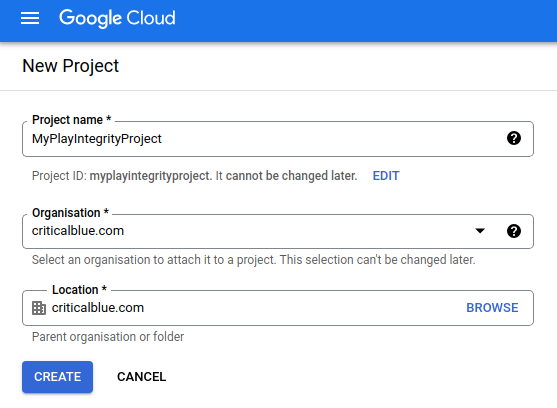
After clicking CREATE, you must then select Enabled APIs and Services on the left hand side for your project as follows:
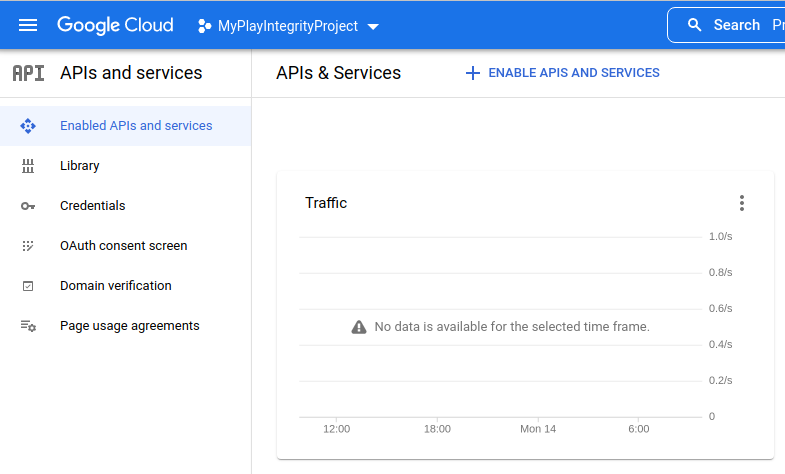
Click on ENABLE APIS AND SERVICES and search for Play Integrity API as follows:
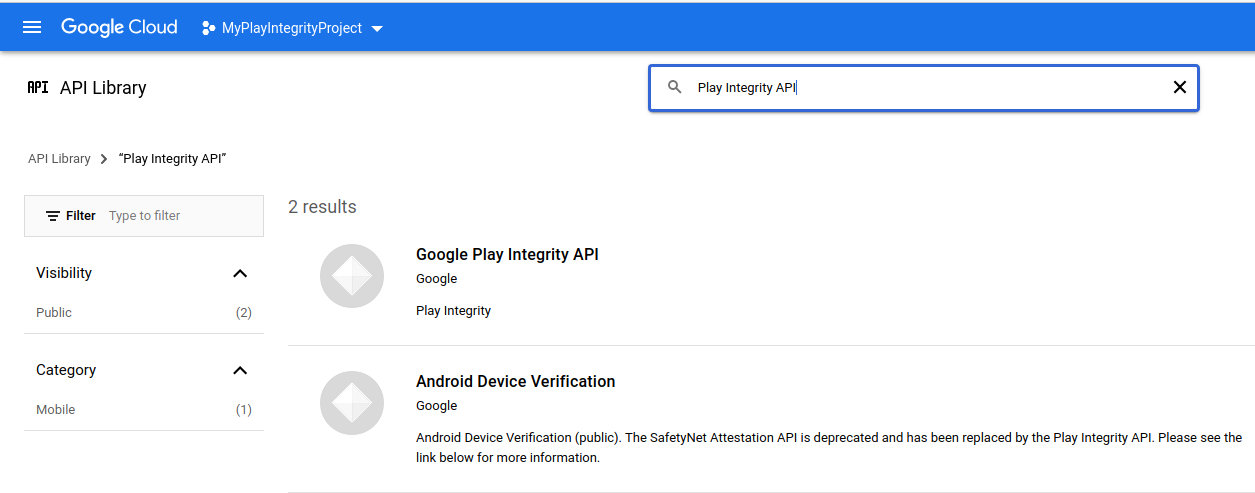
The click on this service:
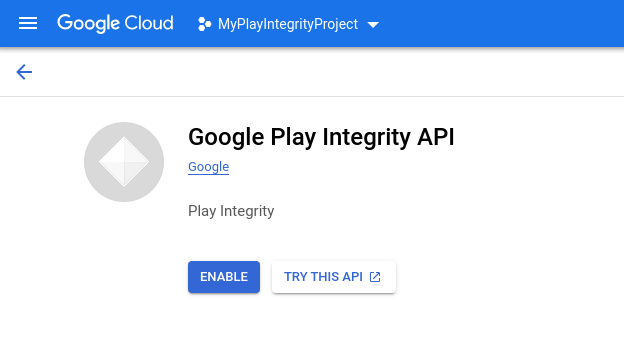
Press the ENABLE button and then you will see the graphs of usage of the Play Integrity API as follows:
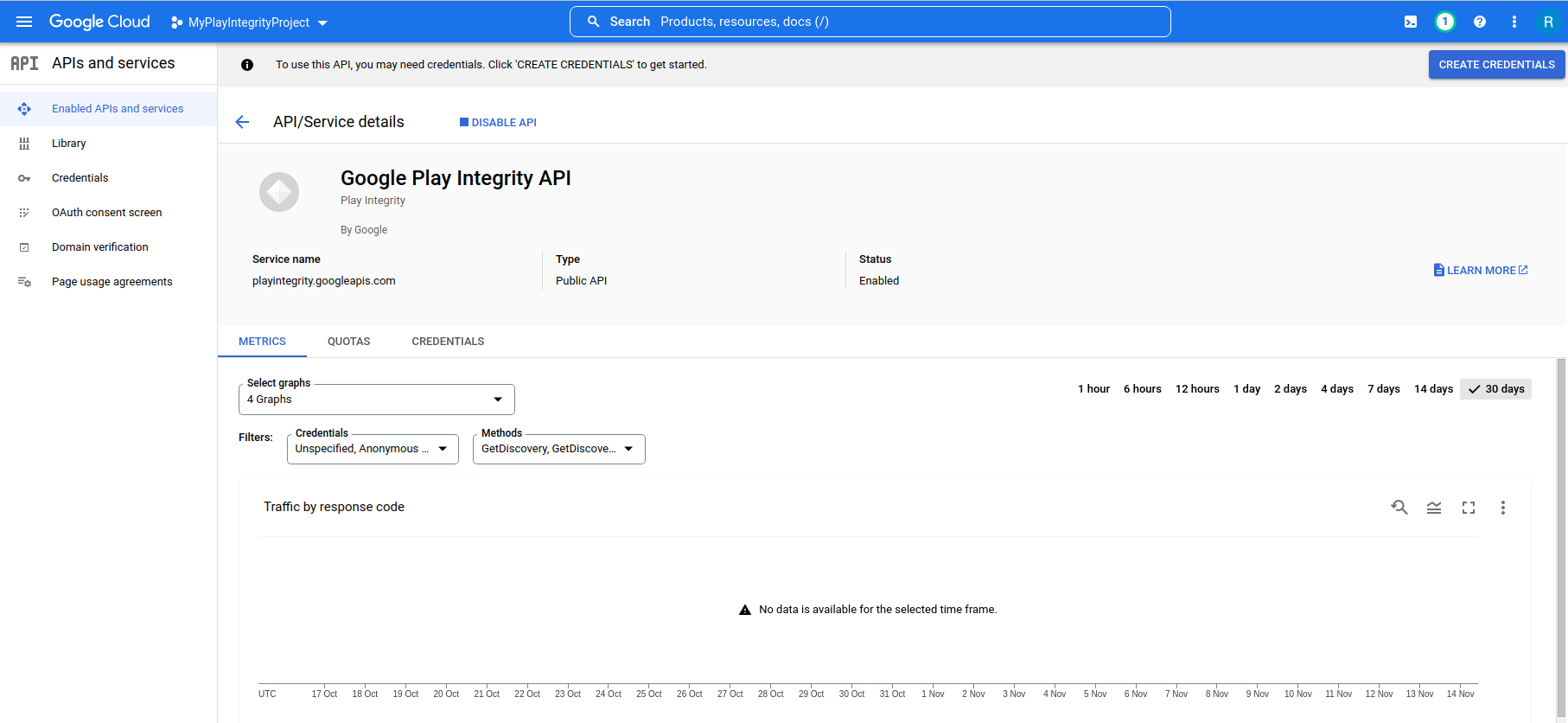
This will of course be empty, but you can view this again later once the integration with Approov is working to see the history of Play Integrity requests being made by your apps.
Enable Play Integrity Responses
Once you have a Google Cloud project with the Play Integrity API enabled, you need to enable the use of the Integrity API from your Google Play console. Log into your app in the Google Play console, selecting 'Test and release' and 'App integrity' of the left hand side menu as follows:
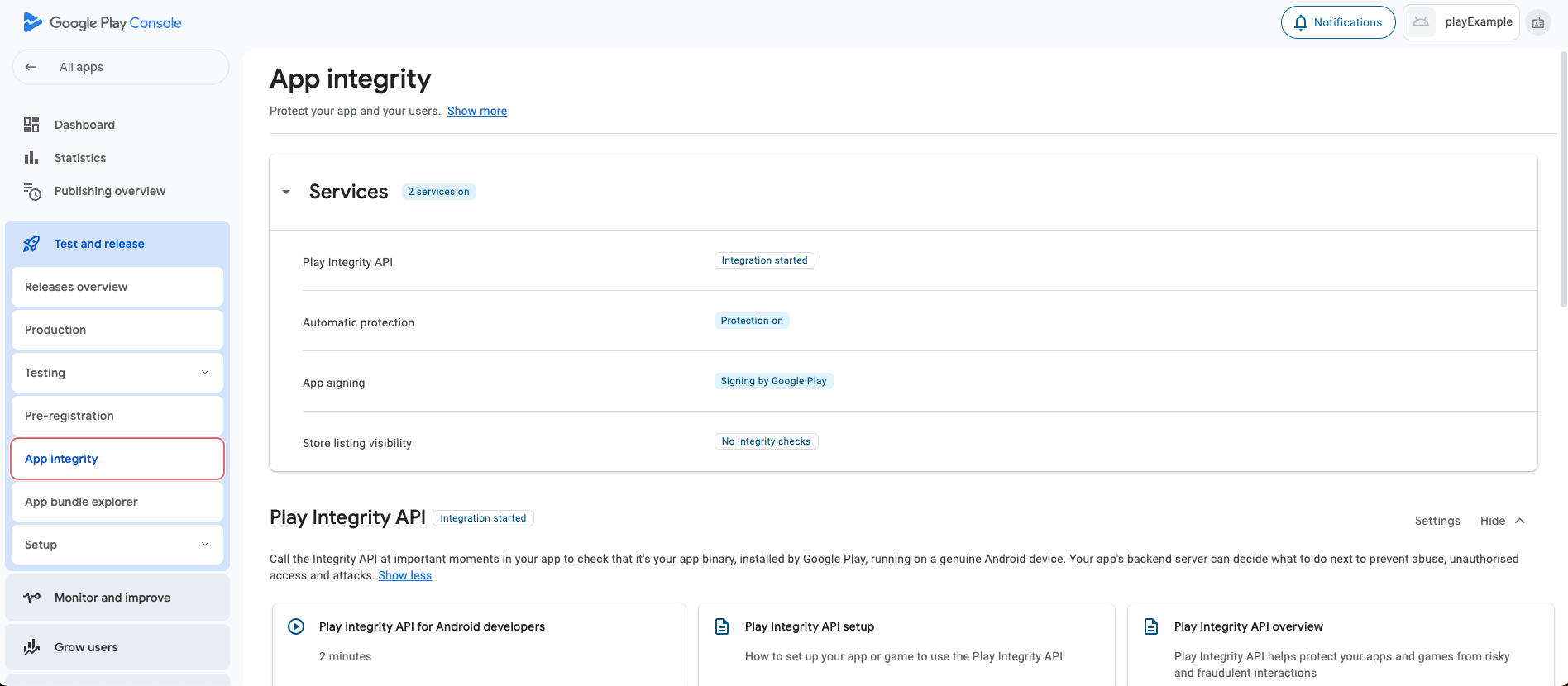
Where 'Play Integrity API' is shown press, the Settings button to its right and you will see a page like the following:
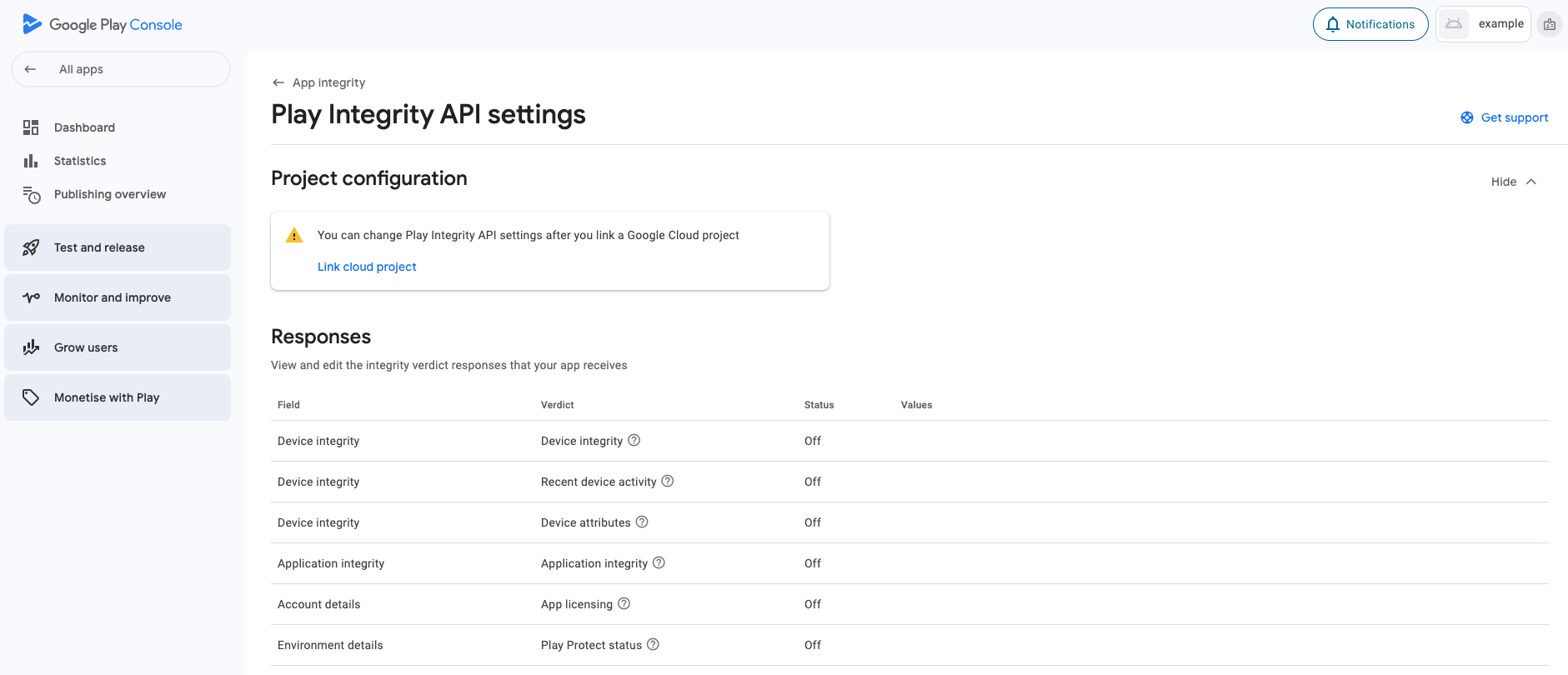
You can then link the appropriate Google Cloud project using the pull down menu and pressing Link Project.
Creating a Service Account
A service account is a special type of Google account intended to represent a non-human user that needs to authenticate and be authorized to access data in Google APIs. You need to add such a service account to your Google cloud project to allow Approov to make calls to the Play Integrity API associated with your Google Cloud project. This is necessary in order to decode the encrypted Google Play integrity tokens that will be collected by your apps. If you already have a suitable service account in your Google Cloud project then you do not need to follow these steps.
First you should select Enabled APIs and services to see the full list of APIs enabled in your project:
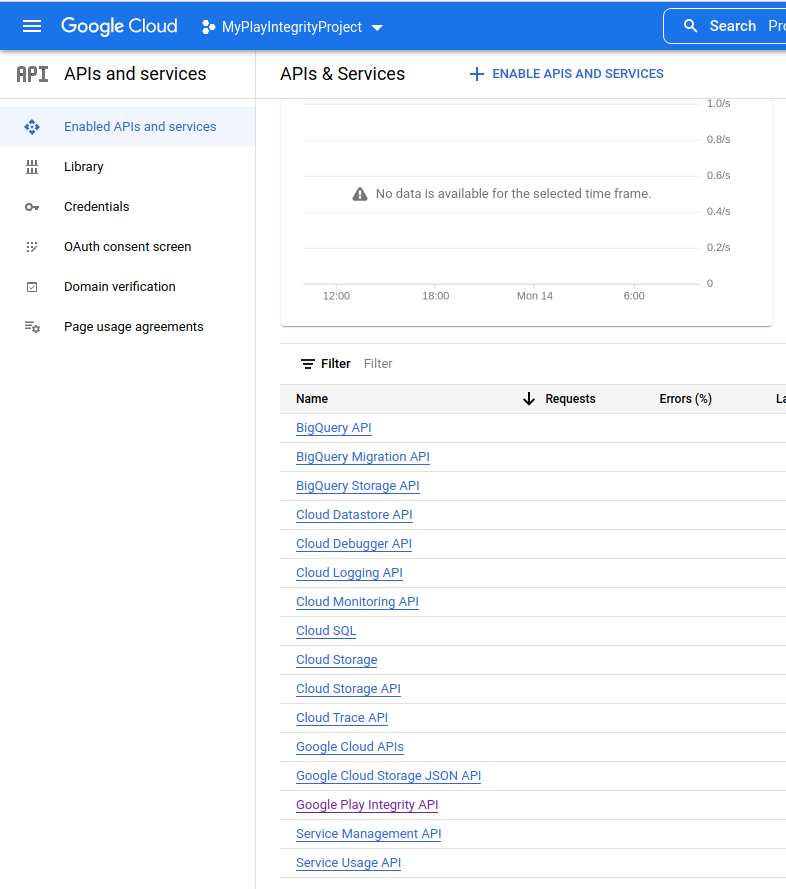
Find and click on Google Play Integrity API to provide it's specific settings:
Then click on CREATE CREDENTIALS on the top right-hand side to enter the dialog to create credentials for a service account role:
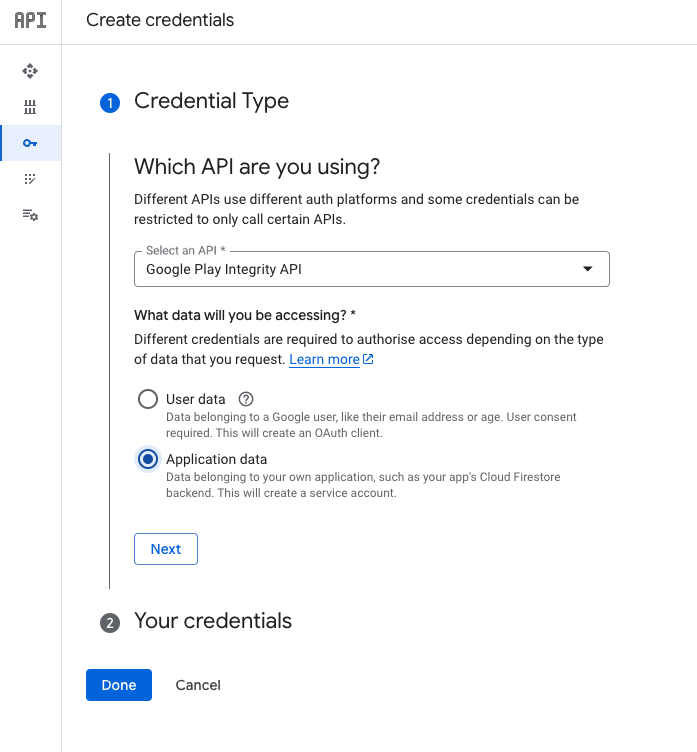
Select Application data for the type of API (ensuring the Google Play Integrity API is selected). Click 'Create and continue' and you should see the following:
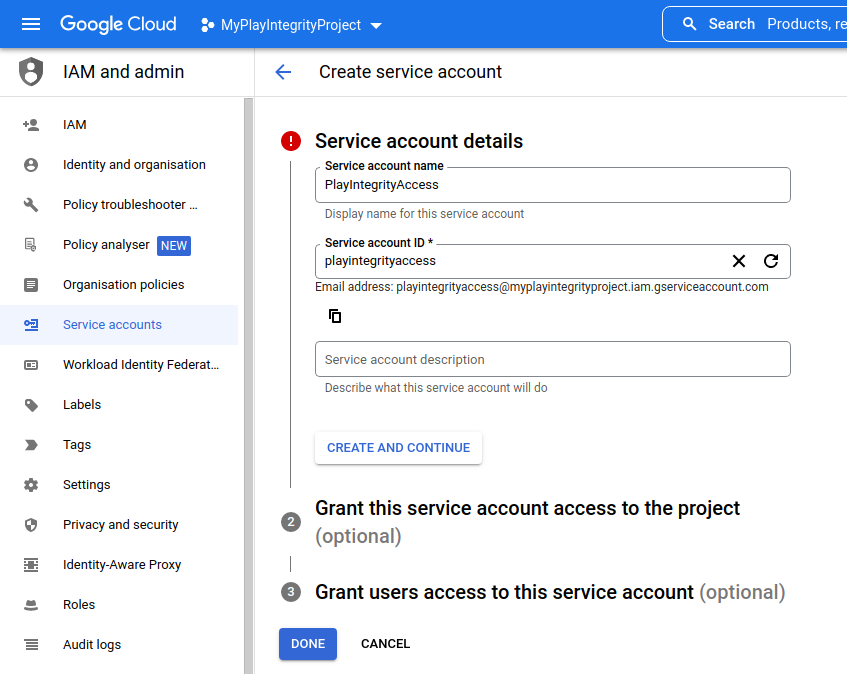
You will need to give the service account a name, in this case it has been given the name PlayIntegrityAccess to indicate its purpose. Click DONE to move onto the next step:
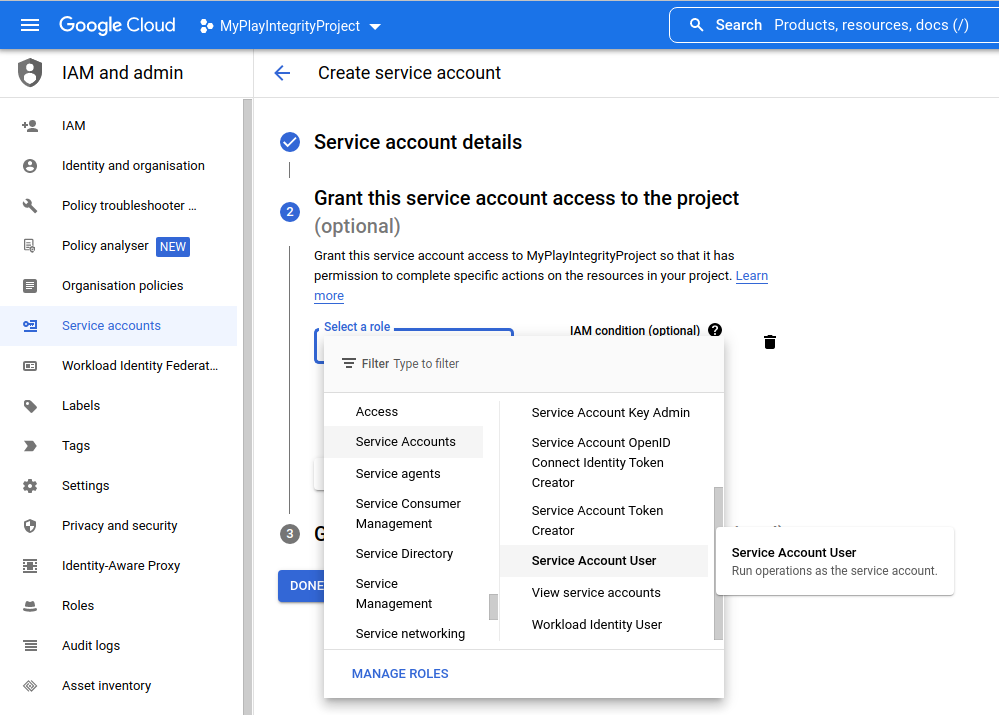
You must then grant service account access to the project. Select from the role, finding Service Accounts as the main type of role and then Service Account User as the subrole. Then click to move to the next step of the menu wizard selection:
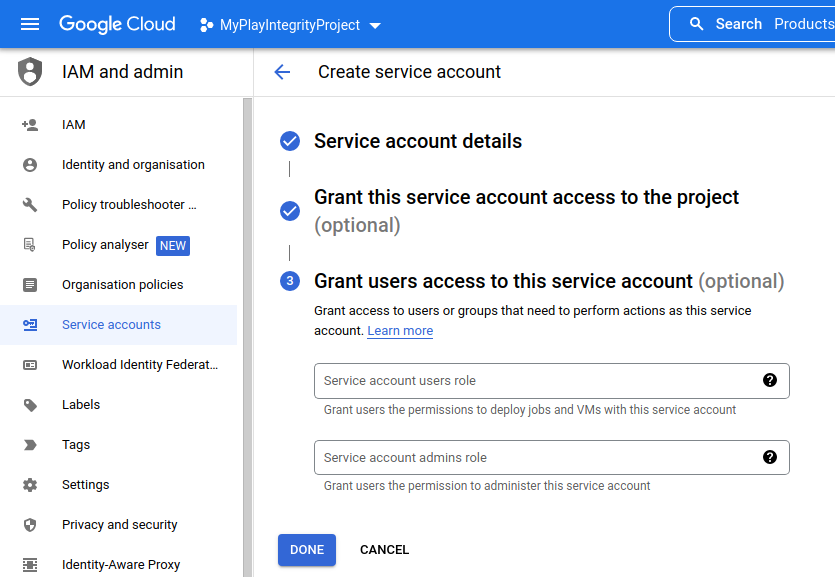
You are now ready to click DONE and a suitable service account has been created.
Enabling Play Integrity Using a Service Account Key
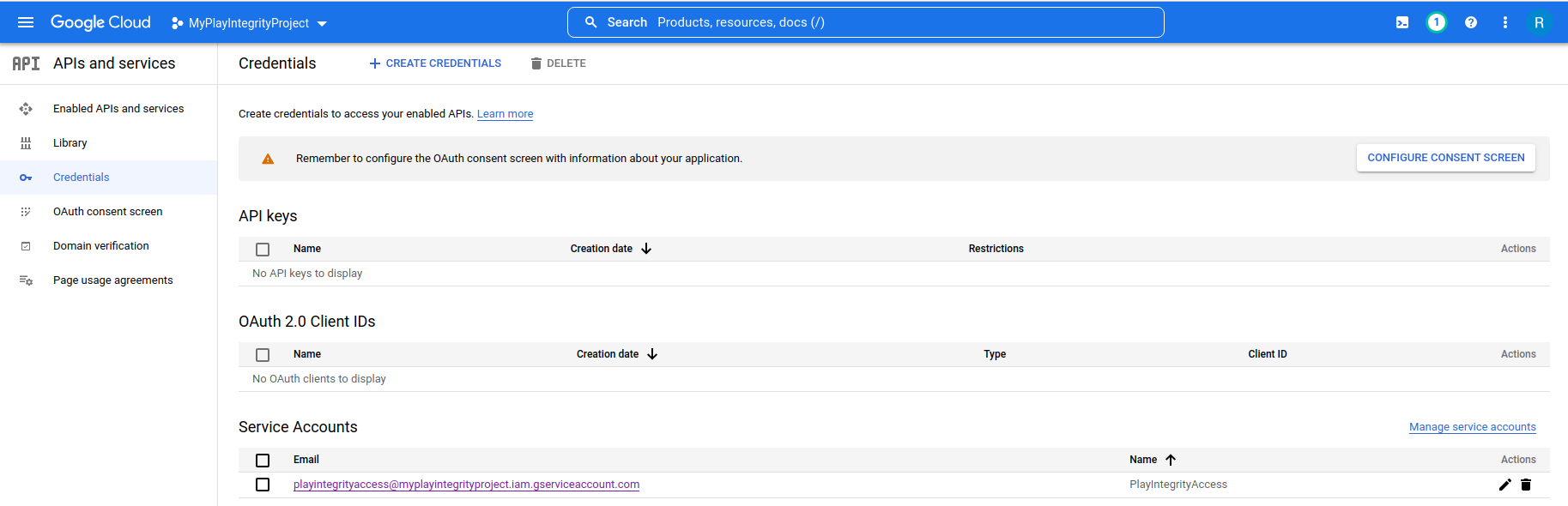
In order to allow Approov to access your Google Cloud project to decode Play Integrity tokens, you must create a credentials in order to enable the access. In your Google Cloud project select Credentials on the left hand side, and then select the Service Account created earlier for the purposes of accessing the Google Play API:
The select the Keys tab:
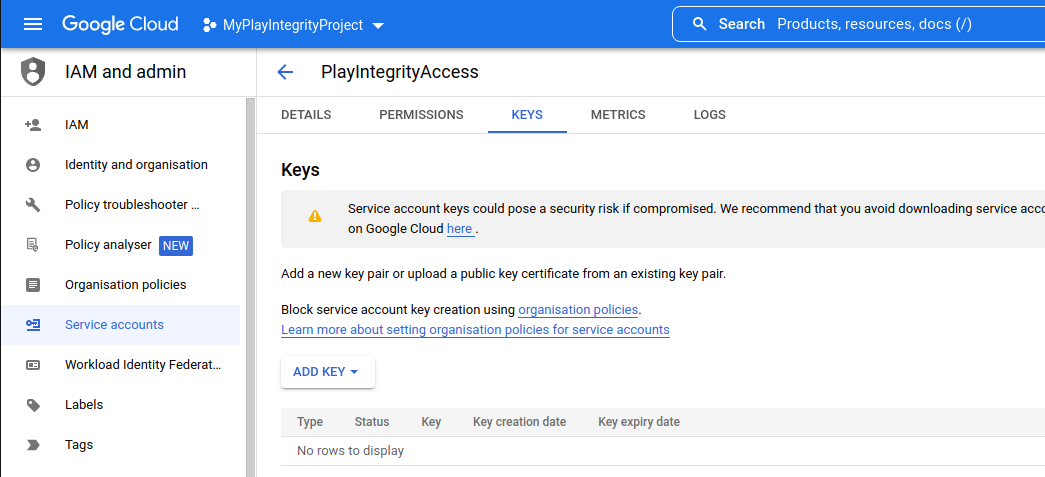
Press the ADD KEY button to create a new key for external service account access:
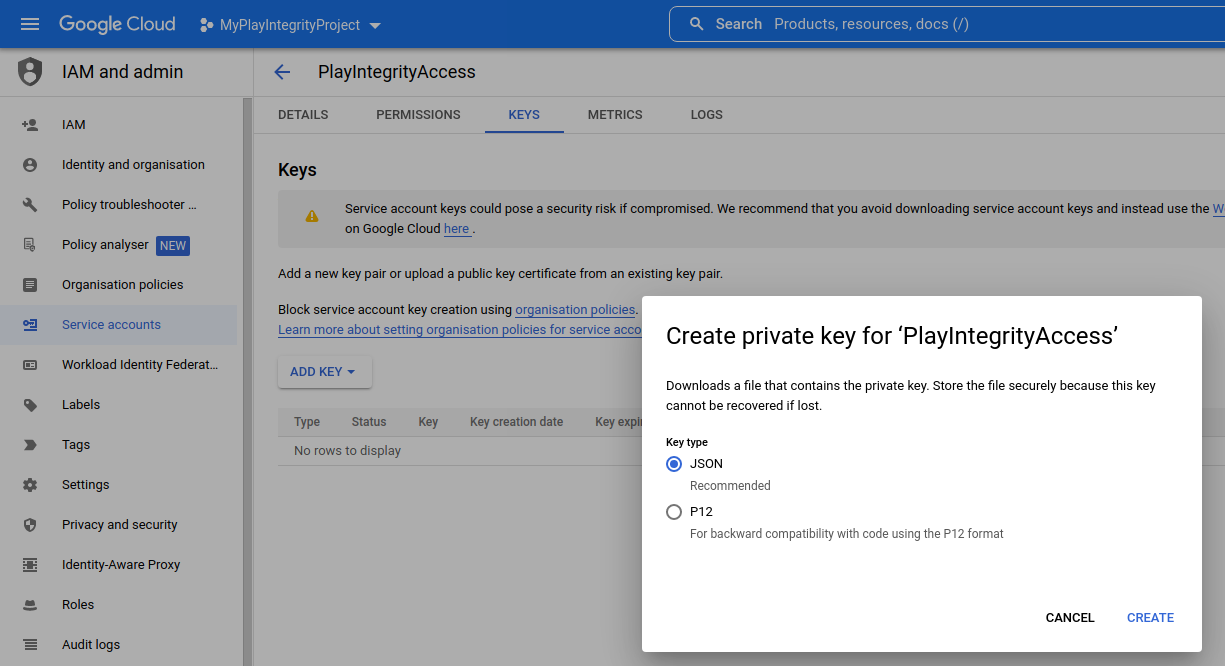
This initiates the process of creating the key. Select JSON format and then CREATE in order to create the key:
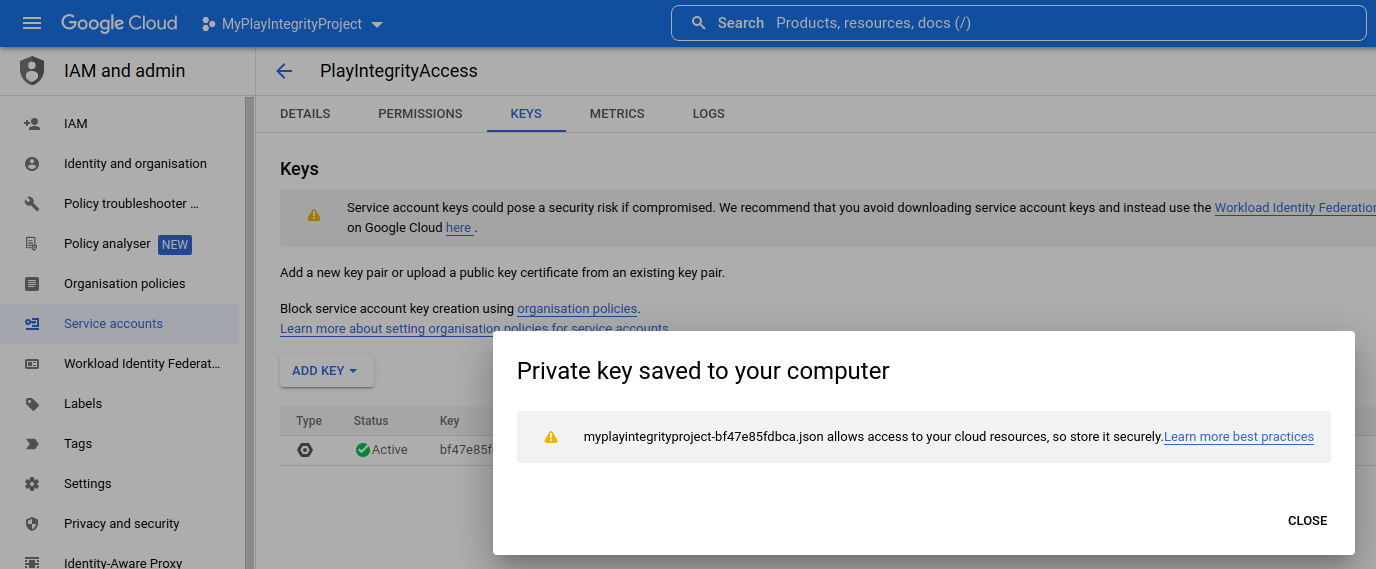
The key will then be downloaded to your computer in the form of a JSON file that includes the private key needed for access. Treat this file carefully since it contains this private key. You might want to delete it after adding it to Approov. You cannot download it again, but you can always delete the key and create a new one.
Next you need to provide this file to Approov as follows (the exact filename will be different depending on your project name and the key generated):
approov playintegrity -addCredentials myplayintegrityproject-bf47e85fdbca.json
You will need an admin or delegate role and confirmation to do this:
WARNING: this will have an immediate impact on your apps in production
ATTENTION: If you wish to continue then please type YES and return: YES
Play Integrity API access credentials added
Once this is set, Android devices will immediately try and perform Play Integrity attestations when they next connect to the Approov service. Note that this includes all existing users of your app and so consider this when thinking about the initial load against your Play Integrity API usage tier.
By default, the Approov Play Integrity integration causes a rejection if the app integrity verdict is not PLAY_RECOGNIZED or the device integrity verdict is not MEETS_DEVICE_INTEGRITY. No check is made on the app licensing verdict. You can easily change these default settings as covered in subsequent sections.
If your app is not on Google Play then you must also set a Google Cloud project number or else your app will not be able to obtain Play Integrity tokens.
Setting Google Cloud Project Number
If your app is not available on Google Play (e.g. if it is still in development) or you do not intend to distribute it exclusively on Google Play, then you must set the Google Cloud project number for the linked project. If you log into your Google Cloud account and select the appropriate project you can see the Project number in the overall dashboard for the project, such as the following:
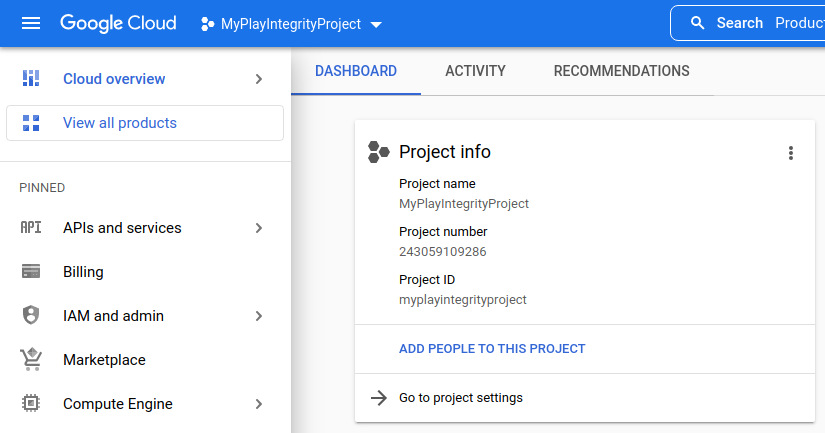
Set the Cloud project number as follows, providing your project number value:
approov playintegrity -setCloudProjectNumber 243059109286
You will need an admin or delegate role and confirmation to do this:
WARNING: this will have an immediate impact on your apps in production
ATTENTION: If you wish to continue then please type YES and return: YES
Play Integrity cloud project number set
If you receive the device property flag playintegrity-need-cpn then this indicates that the Approov SDK has received an error consistent with the Google cloud project number not being set when it may need to be.