Debugging, Monitoring & Testing
Overview
The Approov Command Line Interface (CLI) is used for administering the operation of your Approov service. Builds of the tool are available for Linux, MacOS and Windows. Follow the Approov CLI Tool Installation instructions if you do not have it installed.
Filter Command
approov filter [option]...
| Option | Description |
-add <filter-name> | Adds a new filter to your account with the given filter-name. The -key and either -exists or -value options must also be used to specify the key and value that should be matched. Alternatively, -conjunction may be used to specify a filter that matches when a set of a other filters (with optional negation) all match. Note that filter-name is restricted to 20 characters and must be composed of lower case letters, digits and - only. |
-ban | This may be used together with the -add option to cause any match on the filter to automatically ban the device ID that matches. This option should be used with care, as if the match is too generic then large numbers of devices in the account could be affected. If you need to clear all of the device bans in the account then the -clearDeviceState in the device command can be used, but this requires an admin role. |
-captureDeviceInfo | This may be used together with the -add option to cause any match on the filter to output full device information for subsequent analysis. This device information can be viewed using the -getInfo filtered option in the device command subset. |
-conjunction <filters> | This may be used together with the -add option to define a conjunction of other filters. This is a special filter that matches when the provided filter expression evaluates to true. The input filters parameter is specified as a list of other filter names separated by a '+' character. A set of filters can be negated by prefixing them with either ¬ or ~, e.g. ¬(f1+f2). These concepts can be combined to specify both positive and negative filters: f1+f2+¬(f3+f4). Note that the filters list must contain at least two entries and that none of the entries can be another conjunction filter. If this option is used then -key, -exists, -value and -regex cannot be used. |
-execFilteredSecPolicy | This may be used together with the -add option and indicates that the custom filtered security policy should be executed if there is a match, and such a policy has been added as a special device (++FilteredSecPolicy++w==). This allows the execution of such a policy to be restricted to only certain filter matches. |
-exists | This may be used together with the -add option and specifies that any non-empty value must exist for the specified key.
This cannot be used with -conjunction or -value. |
-getSamplingPercentage | Gets the currently set sampling percentage for a custom filtered security policy, set as the special device (++FilteredSecPolicy++w==). This means that this percentage of the devices will be subject to this security policy rather than the account level one. The sampling is deterministic within a given day, so a given device is always sampled or not for all fetches made. |
-invert | This may be used together with the -add option to invert the filter result. That is, when the filter parameters are unmatched, the overall
filter result becomes a match - and vice-versa. This may also be used with -conjunction to invert the overall conjunction filter result. |
-key <value> | This may be used together with the -add option and specifies the particular key that is being tested with the match. The individual key names are determined from those presented in the -getInfo results using the device command. This cannot be used with -conjunction. |
-list | Lists all of the current filters that are active. |
-newInstallOnly | This may be used together with the -add option and specifies that the match must only occur for new app installs that have not been previously seen. |
-regex | This may be used together with the -value option to indicate that the supplied value is actually a regular expression rather than a verbatim match value. This cannot be used with -conjunction. |
-reject | This may be used together with the -add option to cause any match on the filter to automatically reject the device that matches, and will not receive valid Approov tokens This option should be used with care, particularly if adding a regex filter; all devices matching the filter will be rejected. |
-remove <filter-name> | Removes the filter with the given filter-name. |
-risky | This may be used together with the -add option to cause any match on the filter to mark the device with the risky-device flag. This shortens the issued Approov token lifetime to 2 minutes. This can be used to specially mark devices which are suspect in some way using a custom annotation policy so that other measures can be taken by backend systems that observe the risky-device annotation flag. |
-setSamplingPercentage <percentage> | Sets the sampling percentage for a custom filtered security policy, set as the special device (++FilteredSecPolicy++w==), to the given percentage. Note that this can be set as decimal value, allowing selections below 1%. The maximum that may be specified is 5%. This causes the given percentage of devices to be subject to this security policy rather than the account level one. A value of 0 completely disables the sampling. The sampling is deterministic within a given day, so a given device is always sampled or not for all fetches made. |
-value <value> | This may be used together with the -add option and specifies the particular value that must be matched for the specified key. Individual possible values are presented in the -getInfo results using the device command. By default a verbatim match is required, but the -regex option may be used to specify a regular expression. This cannot be used with -conjunction or -exists. |
Metrics Command
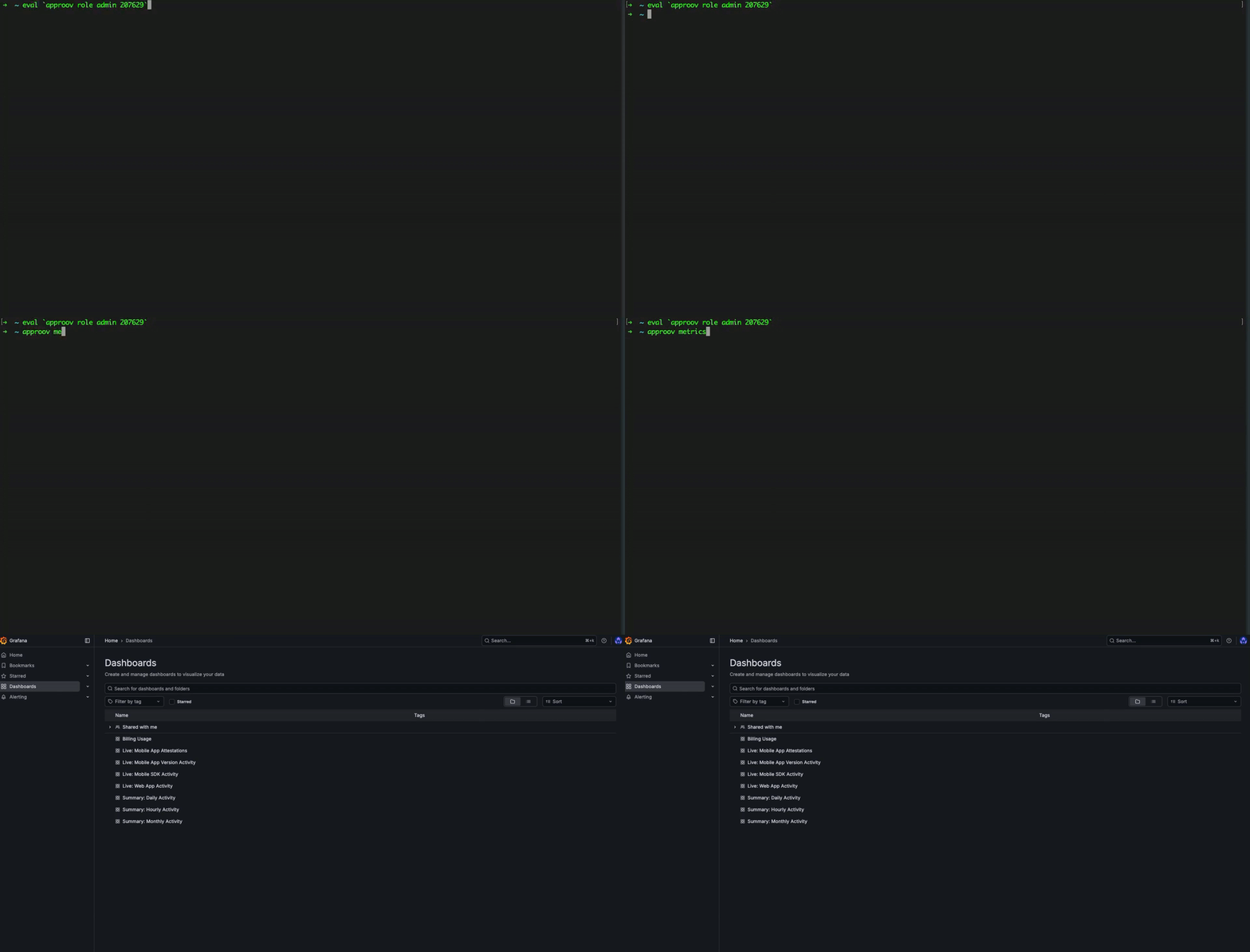
Access to the Grafana based metrics dashboards can be initiated without any further options. Simply use:
approov metrics
Monitoring Command
approov monitoring [option]...
Note that most monitoring commands (apart from -getHealthCheckURL) requires the use of an admin role.
| Option | Description |
-add <email> | Adds a new email to the monitoring recipient list. This email will be sent a summary of monthly activity at the end of the billing period. If daily summaries are enabled then a daily summary will also be sent at midnight UTC. Note that no email confirmation is sent, so care must be taken to enter a valid email address. |
-addAlert <email> | Sets the given email as an alert one for API monitoring failures. Only alerts will be sent to this email address, so it can be one associated with an internal DevOps reporting system. Note that no email confirmation is sent, so care must be taken to enter a valid email address. |
-addAPI <domain> | Adds monitoring for the given API domain (it must have previously been added as an API). This API will then be monitored by Approov on a frequent basis to ensure it is accessible and that the configured pin is correct. An email will be sent to the monitoring recipients and any alert email if there is a problem. The port used for probing the domain can be changed using the -port option. |
-get | Gets the current monitoring configuration, showing the summary period, email recipients, any alert email and any emergency contact set. |
-getHealthCheckURL | Gets the URL to be used for any monitoring of the health of the primary Approov service. |
-port <number> | Used with -addAPI to customize the target port for the TLS connection (defaults to 443). Custom ports must be in the range 1024 to 65535. |
-refreshMetricsLink | Refreshes the metric link that may have been sent in onboarding emails or if the approov metrics has been used. This command should be used if there is a concern that the previous link may have been compromised. A new link is issued that will be used in future onboarding emails and uses of approov metrics. It is also provided as a result of this command. |
-remove <email> | Removes the given email address from the list of those to receive account activity summaries. |
-removeAlert | Removes any alert email. |
-removeAPI <domain> | Removes monitoring for the given domain. |
-removeFailureMonitoring | Removes the configuration for and disables elevated failure monitoring. |
-resumeAPINotifications | Resumes API monitoring notifications after an email has been received. If you do not use this option then by default no more email notifications will be received for 24 hours. |
-resumeFailureNotifications | Resumes elevated failure monitoring notifications after an email has been received. If you do not use this option then by default no more email notifications will be received for 24 hours. |
-selectDailySummary | Selects the option to receive daily summaries of account activity. |
-selectMonthlySummary | Selects the option to receive monthly summaries of account activity. |
-sendTestEmail | Sends a test email to all monitoring and alert email recipients to establish if they are able to receive it okay. |
-setEmergencyContact <info> | Provides a string describing the emergency contact details we should use to contact you urgently about service operation. This may be an email address but ideally you should also include details for use outside of normal office hours. |
-setFailureCountThreshold <number> | Sets the minimum number of attestations that need to fail within the monitoring period of 15 minutes before a failure alert is sent. This must be used in conjunction with the -setFailurePercentageThreshold option that sets the minimum failure percentage threshold which must also be met. |
-setFailurePercentageThreshold <percentage> | Sets the minimum percentage of attestations that need to fail within the monitoring period of 15 minutes before a failure alert is sent. This must be used in conjunction with the -setFailureCountThreshold option that sets the minimum failure count threshold which must also be met. |
Token Commands
approov token [option]...
| Option | Description |
-check <token> | Checks the validity of the provided token value. This shows if the token is valid or not and also decodes the contents of the token, including the algorithm and any key ID used. This works with either JWS or JWE Approov tokens. If a JWS token has expired then that is reported. If the token contains an ARC claim then that is decoded. Note that a Loggable Token may be provided, in which case its validity may be checked, unless the algorithm used is PS256, PS384, PS512, ES256, ES384 or ES512. |
-genExample <domain> | Causes an example Approov token to be generated for the given domain. The provided domain must already be registered as an API. The generated token will have an expiry time of 1 hour to allow it to be used for testing backend integrations. By default the token will be valid, but this can be changed with the -type option. A JWE Approov token will be generated when required by the configuration of the selected API domain. The token will include typical example claims. A data hash pay claim may be added using the -SetDataHashInTokenOption. Note that it is also possible to use this option with a pentest role. |
-genLongLived <params> | This generates a long lived Approov token that is valid for the specified duration. This is useful to enable server-to-server communication to an API protected with Approov. Long lived tokens should never be put into public clients, such as mobile apps or web pages. This may only issue HS256 tokens issued with the account secret key. The
Note that this option requires the use of an |
-setDataHashInToken <data> | This can be used in conjunction with the |
-setFlags <flags> | This can be used in conjunction with the -genExample option to set device property flags in the arc claim of the generated example Approov token. The flags parameter is a comma separated list of device property names (for example rooted,debug). This is useful for testing how a backend integration decodes the arc claim of a token. Note that this requires the account ARC encoding to be enabled. |
-setIPK <pathname> | This can be used in conjunction with the -genExample option to include an ipk (Installation Public Key) claim in the generated example Approov token. The pathname must reference a public key PEM file whose contents are used as the example installation public key. This is useful for testing backend integrations that verify Installation Message Signing. |
-type <state> | Sets the type of an example Approov token. This option may be used in conjunction with
|
-showArcInfoCurl | Displays the curl command that may be used to decode Attestation Response Codes (ARC). Note that, although the output is a curl command, you can of course use an alternative tool or command to perform the GET request. |
-showTokenInfoCurl | Displays the curl command that may be used to get more information about an issued Approov token (and to report misuse). Any HTTP request providing the same parameters as the Curl command will get the same response. |
Device Command
approov device [option]...
| Option | Description |
-add <device-ID> | Adds the given device-ID to the set that have an explicit override security policy for them. The device-ID is a base64 encoded identification string that can be obtained from logging on the device or from the did claim in an Approov token generated on the device. If latest is specified then the last device ID that has requested an Approov token for the account is selected, as long as it was in the last 2 minutes and there is only one such device. The -policy option may be used in conjunction with this option to determine the specific policy to be set for the device, otherwise the current security policy for the account is used. The -pinMode option may be used in conjunction with this option to determine the pinning mode for the device, otherwise the default pins are used. Note if a particular device-ID has previously had a policy set for it then this option allows the previous settings to be updated. |
-clear | This is used in conjunction with the -getFetches, -getInfo new-install or -getInfo filtered options to clear the currently held state of past fetches or new devices. This ensures that the next get will not return duplicate information. |
-clearDeviceState | This clears any persisted device state for the account. This option requires an admin role. |
-configOptions <options> | Sets the list of configuration options that should be applied to the SDK for the particular device. A comma separated list of string options should be provided. This is to enable individual features that must be setup on SDK initialization, before any Approov fetching has been performed. |
-getFetches <timing> | Gets the device IDs of up to the most recent 1000 that have requested Approov tokens for the account. If the timing parameter is timed then the timestamp of the request is shown. It is not present if untimed is used. |
-getInfo <device-ID> | Gets detailed information about the given device-ID if it has been previously added as a custom device using -add and it has made a fetch since then (or as a new device ID previously). The time of the information capture is shown. The information provided may be used by the filter commands. If device-ID is specified as new-install then information is provided for up to 100 of the most recent newly installed apps that were seen on the account (if there have been fewer than 100 new devices since the list was last cleared, then this command will return information about all new devices it has recorded). If device-ID is specified as filtered then information is provided for up to 100 of the most recent devices that were seen on the account with one or more matching filters with the captureDeviceInfo attribute set. |
-label <name> | Used in conjunction with -add to set a particular user label name on a device (max 32 characters). This is helpful for identifying the relationship between device IDs and specific devices. |
-list | Lists all of the devices that have explicit override policies. To help identify device users, this command includes the name of the user that last set the policy, however, any user can remove any device from the list. |
-pinMode <value> | This option may be used in conjunction with the
|
-policy <policy> | This option may be used in conjunction with the
A full list of available policy combinations is available in the Security Policies section. |
-probeURL <url> | Used in conjunction with -add to a probe url for the device. This URL should include the https:// scheme and may optionally include a port number using the standard : notation. The device will obtain the certificate chain observed and provide it via the -getInfo option. |
-remove <device-ID> | Removes the given device-id from the list that have an explicit override policy. The device will then default to use the standard policy for the account. |
-removeMatching <pattern> | Removes devices from the list that have an explicit override policy that match pattern. The pattern is matched against either the user name associated with the original addition of the device or any label that has been set. The removed devices will then default to use the standard policy for the account. |
ForceFail Command
approov forcefail [option]...
| Option | Description |
-addApp <name> | Adds the app with the given package/bundle name with the version provided using the -appVersion option. Once added, the specified app and version will always fail attestation. This is typically used to block older app versions when a signing certificate with auto-registration has been added. Auto-registration normally causes any app signed with that certificate to pass. An admin role is required. |
-addDevice <device-ID> | This adds the given device-ID to the set that are forced to fail. This set has a default maximum size of 100 devices. If this limit is exceeded then the earliest added device ID is automatically deleted from the set. |
-appVersion <version> | This must be used in conjunction with the -addApp or -removeApp option to specify a particular app version. |
-listApps | Lists all of the apps in the force fail set. These are listed with their package/bundle name and the set of versions for that app which will fail. |
-listDevices | Lists all of the device IDs that are in the force fail set. The list is sorted by addition time starting with the earliest and ending with the most recent addition. |
-removeApp <name> | Removes the app with the given package/bundle name with the version provided using the -appVersion option. Once removed, the app and version will no longer be forced to fail. An admin role is required. |
-removeDevice <device-ID> | Removes the given device-ID from the set which will always be forced to fail. |
ForcePass Command
approov forcepass [option]...
| Option | Description |
-addDevice <device-ID> | This adds the given device-ID to the set that are forced to pass. This set has a default maximum size of 100 devices. If this limit is exceeded then the earliest added device ID is automatically deleted from the set. If latest is specified then the last device ID that has requested an Approov token for the account is selected, as long as it was in the last 2 minutes and there is only one such device. |
-changeDevKey | Changes any existing development key on the account to a new random value. This means that any existing apps using the previous development key will no longer be forced to pass. This should be used if there is any concern that the development key has leaked outside of the organization. An admin role is required. |
-getDevKey | Gets the development key for the account, creating one if necessary. This is a random string that can be provided inside the app after SDK initialization to force the app to be passed. It should never be released in a production version of the app. It is provided specifically for the case where an online test environment resigns apps, so they would not otherwise pass the attestation. |
-listDevices | Lists all of the device IDs that are forced to pass. These are lists in ascending order of the last time that they were added, so the most recent addition is show at the end of the list. |
-removeDevice <device-ID> | Removes the given device-ID from the set which will always be forced to pass. |