iOS SDK Integration
This section shows you how to get the iOS Approov SDK and integrate it into your project in Xcode.
This section is written to obtain an iOS SDK. Since version 3.2.0 watchOS is also supported, but this requires a different SDK. You can use the commands listed in this section but append -watchOS to force the download of that version.
Getting the iOS SDK as an XCFramework
The iOS Approov SDK can be downloaded using the approov command line tool. By default the SDK is provided as a dynamic XCFramework to allow usage with both physical devices and simulators. Use the following command to download the latest SDK package:
approov sdk -getLibrary Approov.xcframework
This writes the SDK into the directory Approov.xcframework (or any path that is specified). Ensure that this is empty before you perform this operation. Note that the raw iOS package is quite large so it may take some seconds to download depending upon your connection speed. Download progress is shown.
You will be informed if a new SDK version is available when you register an app that contains an older version. If this happens you should consider upgrading using this command, which will always provide the latest version.
In some cases you may have been directed to use a specific version of the SDK with a particular numeric identifier. You can select it as follows, 5643 in this example:
approov sdk -getLibrary Approov.xcframework -libraryID 5643
Importing the SDK into Xcode
The Approov SDK minimum requirement is iOS 12. You cannot use Approov in apps that support versions older than this.
The Approov framework can be added to an existing app Xcode project using the following steps:
-
In the Xcode project editor, select the target to which you want to add the Approov SDK framework.
-
Select the
Generaltab. -
Select the + (plus) icon under the
Embedded Binariessection. -
Select
Add Other...in the file dialog and browse to theApproov.xcframeworkobtained using theapproovcommand line tool. -
Select
Openin the file dialog. -
Ensure the
Copy items if neededdestination option is checked, then select Finish.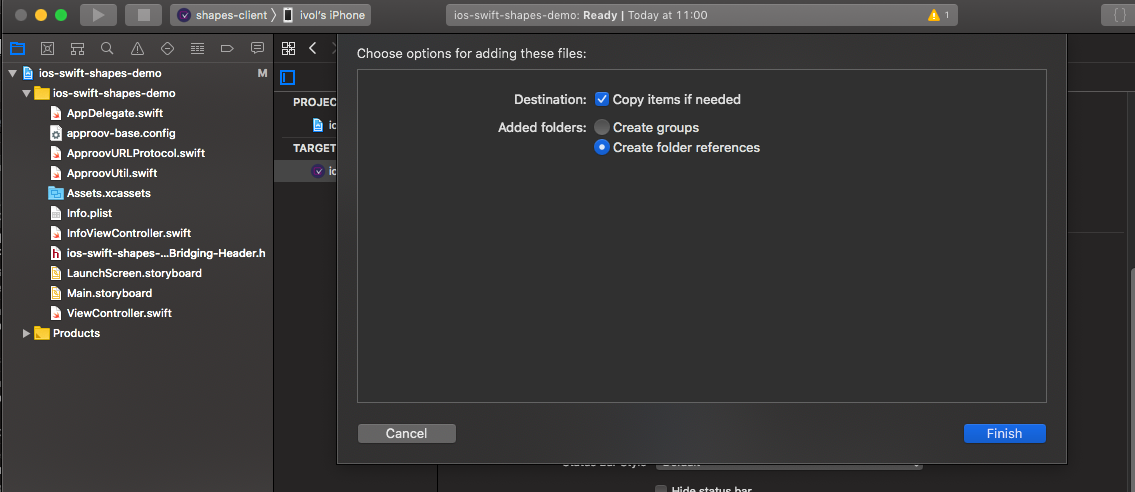
-
The
Approov.xcframeworkentry should now be present in theEmbedded BinariesandLinked Frameworks and Librariessections, indicating that this will be included and linked with your app.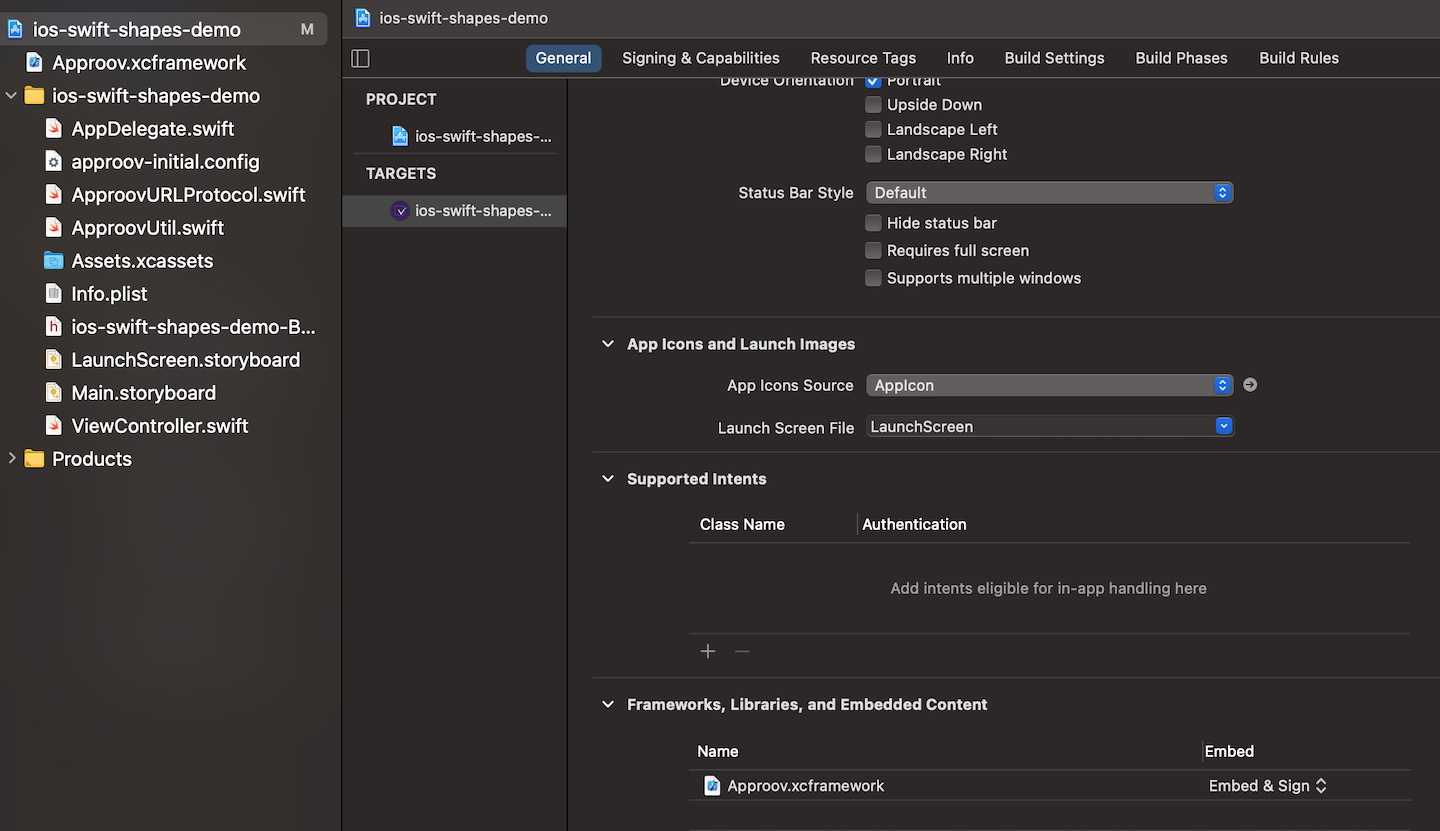
To access the Approov framework in source code, the public header must be imported. This can be achieved by adding the following to the top of your source or header files:
- Swift
- Objective-C
import Approov
import <Approov/Approov.h>
Getting the iOS SDK as a Framework
It is also possible to obtain the SDK in the classic .framework format as follows:
approov sdk -getLibrary Approov.framework
This writes the SDK into the directory Approov.framework (or any path that is specified). Ensure that this is empty before you perform this operation. Note that the raw iOS package is quite large (of the order of 10MB) so it may take some seconds to download depending upon your connection speed. Download progress is shown.
By default the SDK provided is only suitable for running on physical devices. You can use the -simulator option to obtain a different SDK that only includes simulator architectures.
Note that it is also possible to obtain an SDK in the legacy .zip format by using this extension. This provides the SDK in a zipped file of Approov.framework.