Automated Approov CLI
You may wish to use the Approov CLI from within automated scripts, perhaps on remote runner machines for Continuous Integration (CI) systems. In this case the interative approov role mechanism may not be appropriate, since it requires a user to type in the password and the session only lasts for one hour. Thus a mechanism is provided whereby an automation role management token can be defined in a local environment variable to provide Approov account access. This will not be password protected.
An automation role management token has limited rights, but should be sufficient for the operations required in a build environment.
Management tokens must be considered to be sensitive secrets since they allow access to your Approov account. Take care with security when setting these up. Never log them and never commit them to source code repositories.
Creating an Automation Management Token
You should create an automation management token for the purposes of the scripted access. An email address must be provided, for the user that is the custodian of the management token. We suggest you override the user name with information about the intended purpose, or the machine that the management token is going to be used on. For instance:
approov users -add you@your.domain -userName "CI Machine" -automation
Confirmation is required and the output will be like the following:
WARNING: you are adding automation role access to account your-account for you@your.domain (CI Machine)
ATTENTION: If you wish to continue then please type YES and return: YES
automation management token written to automation-1234.tok
set this in an APPROOV_MANAGEMENT_TOKEN environment variable on the machine that requires it
This writes the automation management token to the file automation-1234.tok, in this case. Follow the instructions for Linux, MacOS or Windows to set the APPROOV_MANAGEMENT_TOKEN environment variable.
If you have multiple different build machines then you could consider having a differently named automation managament token for each one. They can then be independently revoked if required. Moreover, any app registrations made will be tagged with the management token name.
If you have also performed an approov init for the same user that is using an automation management token set with APPROOV_MANAGEMENT_TOKEN then you will get a warning on approov CLI command invocations. This reminds you that the APPROOV_MANAGEMENT_TOKEN is usurping the role that would normally be selected. We generally encourage you to not issue approov init for users or machines that will only be using an automation token. You can remove initialized roles by removing the .approov file in the user's home directory.
Automation Setup on Linux
You can do this easily with the following command:
read -r APPROOV_MANAGEMENT_TOKEN < automation-1234.tok; export APPROOV_MANAGEMENT_TOKEN
The parameter automation-1234.tok should point to the file containing the development management token that you received on signup. You can test the environment variable was set by issuing an approov whomai command.
Note that the environment variable APPROOV_MANAGEMENT_TOKEN will only be set while this shell is running. If you want to make the setting more permanent then you can edit your ~/.bashrc file (or equivalent for other shells) and add the line:
APPROOV_MANAGEMENT_TOKEN=eyJhbGciOiJIUzI1NiI…
The string for your development token should be copied from the automation-1234.tok file. Alternatively you can run the read command above in the context of your shell startup. Now any newly created shells have the management token available in the environment so that it is not necessary to make it available on each approov command invocation.
Automation Setup on MacOS
You can do this easily with the following command:
read -r APPROOV_MANAGEMENT_TOKEN < automation-1234.tok; export APPROOV_MANAGEMENT_TOKEN
The parameter automation-1234.tok should point to the file containing the development management token that you received on signup. You can test the environment variable was set correctly by issuing an approov whoami command.
Note that the environment variable APPROOV_MANAGEMENT_TOKEN will only be set while this shell is running. If you want to make the setting more permanent then you need to edit your shell initialization file. This is ~/.bashrc for versions prior to Catalina, or ~/.zshrc since Catalina which uses the zsh by default. If you are using a non-standard shell then you will need to consult its documentation. Add the line:
export APPROOV_MANAGEMENT_TOKEN=eyJhbGciOiJIUzI1NiI…
The string for your development token should be copied from the automation-1234.tok file. Alternatively you can run the read command above in the context of your shell startup. Now any newly created shells have the management token available in the environment so that it is not necessary to make it available on each approov command invocation.
Automation Setup on Windows
Open the advanced settings page:
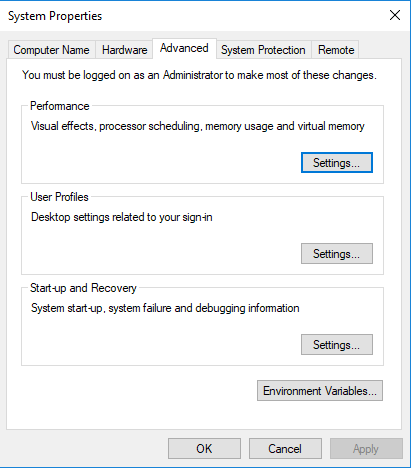
Then click on the “Environment Variables” button. This opens up another dialog where you can click on the New for user variables to add a new environment variable. The token should be put in the user, rather than system, variables so that it is not accessible to other users of the same machine.
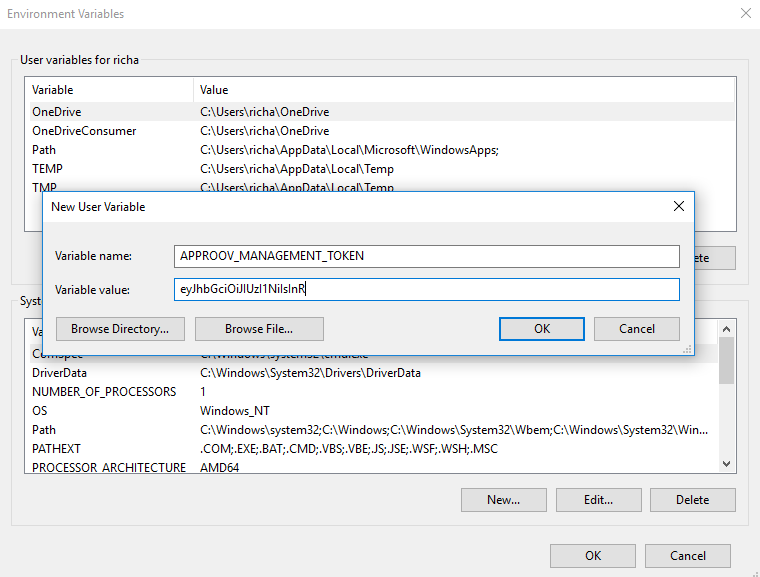
The development token string should be copied from the automation-1234.tok file.
Command shells created after setting the value and closing the dialog will have the management token available in the environment so that it is not necessary to make it available on each approov command invocation. You can test that this is correctly setup with an approov whoami command.
Retrieving an Existing Automation Management Token
If you have previously created an automation role management token then you can retrieve its value again as follows. Firstly, list the user roles to find the role ID value (on the left hand side of the listing):
approov users -list
This will output something like the following:
automation-1234 you@your.domain, CI Machine, expires 2021-12-04 11:47:11
You can then obtain the management token itself using the role ID:
approov users -getManagementToken automation-1234