Service Monitoring
Approov provides facilities that allows monitoring of the status of your account. A healthcheck API endpoint is supported, along with monthly or even daily summaries of usage. There is also the option for notification emails if there is a certificate or API access problem with one of your endpoints, or if there are elevated attestation failures in your account.
Summary Emails
Summary emails can be sent automatically at the end of each billing month. This is typically on the anniversary day within the month of your signup to the Approov service. Typical emails are of this form:
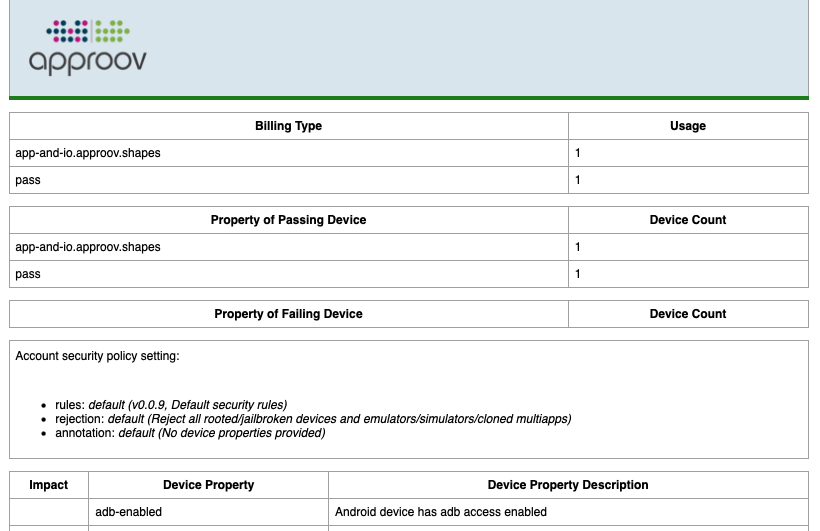
Information provided is as follows:
- Billing Usage: Provides an overview of the billing usage of the account in the last month, based on the monthly billing usage of the information in Billing Usage
- Passing Devices: Provides an overview of the properties of the devices which passed during the month, based on the monthly
Device Passessummary of the information in Monthly Activity. - Failing Devices: Provides an overview of the properties of the devices which failed during the month, based on the monthly
Device Failssummary of the information in Monthly Activity. - Security Policy: A reminder of the Security Policy that is currently set for your account. This directly impacts which devices are passed and which are failed.
- Impact: Provides a list of all of the device properties, a short description of each, and the impact in terms of whether they will cause a rejection if detected.
- Option Flags: Provides a list of all of the option flags, a short description of each, and whether they are enabled for the account or not.
- Metered Metrics: Provides information about individual attestation usage and also any usage of the Web Protection Integration. The metrics are prefixed
att-rqst-passfor passing attestations andatt-rqst-failfor failing attestations. This is based on the monthlyRequest PassesandRequest Failssummary of the information in Monthly Activity.
The email should be received shortly after midnight UTC on your billing day. The email is copied to all those on the recipient list. The Managing Email Recipients shows how you may update this. Shortly after receiving the summary email you will also receive an invoice or automated credit card charge reflecting the usage shown in the summary email.
Note that for some accounts the billing will be based on the number of attestations rather than the number of unique devices used during the month. In this case the format of the email will be slightly different:
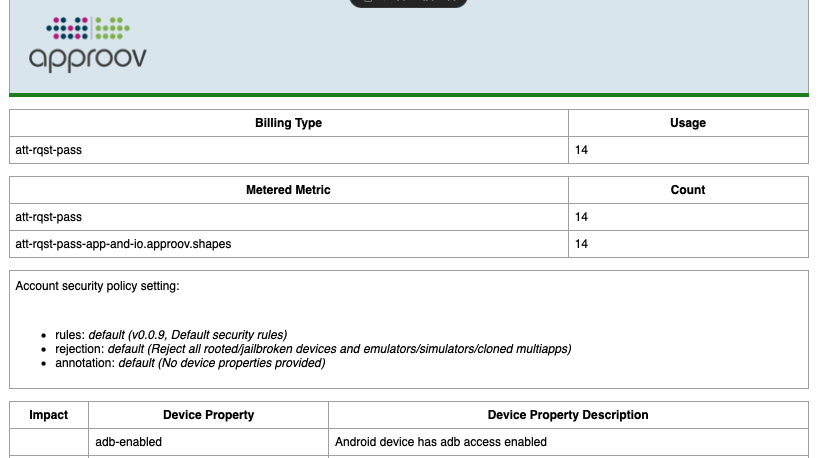
This provides the Metered Metrics near the top of the email rather than the Passing and Failing Devices.
API Monitoring
The Approov cloud service is able to monitor your API endpoints to ensure that they are both accessible and that the certificates presented match one or more of the pins you have set in your account. The endpoints are checked every 15 minutes, and a notification email is sent if a problem is detected. This will list each of the monitored API domains that are experiencing an issue.
When you add an API domain, monitoring for it will be activated automatically, unless no pin was added or one was added via local access (implying the API endpoint is not generally visible on the Internet). Note that notifications can only be sent if your account's alert email or email recipients list has been set up. API monitoring alerts are sent to all these email addresses.
You can always set a new API for monitoring as follows:
approov monitoring -addAPI your.domain
An admin role is required. If the API is not accessible on the standard port of 443 you can use the -port option to select monitoring on a different port.
If an email is sent then, by default, no further ones will be sent for 24 hours. However, you can override this behavior by issuing the following command:
approov monitoring -resumeAPINotifications
You will then receive an email again if there is a further problem after the APIs are checked on the next (or a subsequent) 15 minute cycle.
Monitoring for a specific API domain can be removed as follows:
approov monitoring -removeAPI your.domain
This might be required if the API domain is not accessible from the Approov cloud service, or is not part of your production system and you don't wish to monitor it continuously.
Elevated Failure Monitoring
The Approov cloud service monitors the number of attestation failures associated with your account on a continuous basis. Every 15 minutes a check is made against thresholds set within the account. If the attestation failures in the period exceeds the thresholds set then a notification email is sent.
Having a large number of failing attestations does not necessarily mean that there is a problem. It may be that everything is operating normally and invalid attempts to obtain valid Approov tokens are being correctly blocked by Approov. However, there are also circumstances in which an account misconfiguration (such as a failure to register a new app version or app signing certificate) can also lead to unintended failures that could impact end users. We suggest that you look at the Metrics Graphs to diagnose the root cause of the issue.
The default is for no reports to be sent for failing attestations. This matches the needs of your account as you initially onboard and prepare your app for release with Approov protection. Once you have released and app and have a good idea of your typical account behaviour and throughput you can adjust the elevated alerting thresholds appropriately.
You can set the thresholds for your account with:
approov monitoring -setFailureCountThreshold <count> -setFailurePercentageThreshold <percentage>
An admin role is required and you must always provide both parameters. This sets the new thresholds to require a count number of failing attestations that also represent percentage or more proportion of all requests for the account in the 15 minute period. If you wish to effectively silence reporting then you can set the thresholds to be very high values, such as 1000000 for the count and 100 for the percentage.
If an email is sent then further monitoring will be disabled for 24 hours. You can restart moniotoring immediately by issuing the following command:
approov monitoring -resumeFailureNotifications
You will then receive an email again if there is a further problem after the attestations are checked again on a subsequent 15 minute cycle. This in turn will again cause monitoring to be disabled for 24 hours which can be cut short again by the above command. To disable elevated failure monitoring completely you can issue the following command:
approov monitoring -removeFailureMonitoring
Managing Alert Email
It is possible to set an email address for receiving API monitoring and elevated failure alerts as follows:
approov monitoring -addAlert ops-alert@your.domain
An admin role is required. Be careful with the addition of email addresses as these are not verified at the time of addition. There can only be a single alert email address.
This email will only be sent API monitoring and elevated failure monitoring emails, not any summary emails. Thus an email address can be used that will generate an internal alert within your systems to provide immediate notification that there is an issue with your account.
You can retrieve the current settings as follows:
approov monitoring -get
Producing a response such as:
monitoring emails will be sent to:
  you@your.domain
summary frequency: monthly
alert recipient: ops-alert@your.domain
failure count threshold: 1000
failure percentage threshold: 20%
The alert email can be removed with:
approov monitoring -removeAlert
If it is not possible to deliver email to the alert recipient on a continual basis then it may be automatically removed by Approov.
Managing Email Recipients
When your account is first created your email will be setup to receive summary emails and API monitoring alerts. You may add new recipients as follows:
approov monitoring -add another@your.domain
An admin role is required. Be careful with the addition of email addresses as these are not verified at the time of addition. It is possible to have up to 10 different monitoring email recipients.
You can retrieve the current settings as follows:
approov monitoring -get
Producing a response such as:
monitoring emails will be sent to:
  you@your.domain
  another@your.domain
summary frequency: monthly
failure count threshold: 1000
failure percentage threshold: 20%
Email recipients can be removed with:
approov monitoring -remove another@your.domain
If it is not possible to deliver email to a particular recipient on a continual basis then the recipient may be automatically removed by Approov.
Sending Test Email
It is possible to send a test email to all monitoring (and any alert) recipient with:
approov monitoring -sendTestEmail
This can be used to verify that the email addresses have been setup correctly and can be received correctly.
Setting Summary Frequency
By default only a monthly summary email will be sent. However, it is also possible to opt into a daily summary email that is also sent soon after midnight UTC. It provides a summary of the passing and failing devices from the day, representing the daily endpoint of the data in Daily Metrics.
Opt into daily emails as follows:
approov monitoring -selectDailySummary
You may always return to monthly emails only with:
approov monitoring -selectMonthlySummary
Emergency Contact
A facility is provided to allow you to set an emergency contact. This will allow Approov to contact your operations team in an exceptional circumstance, such as a major Approov outage or if we detect a serious problem with your account. Ideally therefore you should provide some mechanism to allow us to contact your operations team out of hours.
You can specify a string containing contact information with:
approov monitoring -setEmergencyContact "Email at ops@your.domain, out of hours cell +1 23456789"
Remember you can always contact our operations team using the technical support email support@approov.io.
Healthcheck Endpoint
The Approov cloud service incorporates an always-on health monitoring system which actively monitors the state of various internal cloud server components, reporting the overall health state and operational readiness of the primary service. This has an externally accessible API for determining the system health for your account. You can retrieve the URL for this endpoint as follows:
approov monitoring -getHealthCheckURL
This provides the URL that you should use for checking your particular account health, e.g.
https://healthcheck.approovr.io/healthcheck/att-your-account
Note that it is common for account names to be prefixed with att-, as shown here. You can query this endpoint to determine the system health as follows:
curl -X GET https://healthcheck.approovr.io/healthcheck/att-your-account
This endpoint will return a “200 OK” HTTP response with a JSON body including a HealthState key with value initializing, passed or failed. You would normally expect:
{
  "HealthState": "passed"
}
You can regularly poll this endpoint if you wish to determine the system heath. We do not recommended that you poll more than once a minute. The possible states are as follows:
initializing: Appears temporarily after a service restarts one or more components and indicates that the system is gathering data to determine the health status. When this operation is complete, the health monitor will report apassedorfailedhealth state as appropriate.passed: Indicates that the system is up and running correctly. All operations can be used as normal.failed: Indicates that the system has encountered a fault in one or more of its components. The administration APIs may be down which means the service cannot be administered using theapproovcommand line tool. In the unlikely event that the service is unhealthy, the health monitoring system will report apassedstate as soon as the system becomes healthy again.
Note that the endpoint only returns the health of the primary service. If there is a problem with the primary service then the failover system is automatically enabled, as described in Cloud Server Redundancy. This means that even if the primary system is being reported as being unhealthy then it is highly likely that Approov tokens will still be being served by the system. Note that if the health endpoint itself is down then it is not possible to determine the system state. However, since this endpoint is not itself served by the primary system and is independent of it, the likelihood is that it remains fully operational.
Security Rules Version Management
A particular security rules name may be specified either globally for the account (see What is a Security Policy) or for a specific custom device (see Adding a Device Security Policy). The default security rules name is always available and is managed by Approov; you may also define your own security rules names as described below.
The security rules name defines the specific configuration for the threat analysis that is performed by Approov. This is under continual development by Approov and we periodically make new versions available. The updates normally contain a combination of improvements usable on pre-existing SDKs and new features only available for new SDKs. All releases are backwardly compatible for previously released SDKs though.
The security rules version management allows you to set up your own security rules names (e.g. my-default), each associated with a particular security rules version, which can then be selected for the account or for individual custom devices. Note that the default security rules name is managed by Approov and cannot itself be modified or removed. Furthermore, facilities are provided to perform a gradual rollout of a new security rules version across your user base if required.
You do not typically need to manage the security rules version yourself. Approov support will automatically update the security rules version you are using from time to time to provide the latest threat protection. Updates should be transparent. These options are designed for some customers who wish to manage the update cycle themselves or who are using custom security rules developed by Approov. Please contact Approov support if you wish to obtain more information about this.
Getting Current Versions
View the current security rules versions that are set with the following command:
approov secrules -get
This lists all of the security rules names that are set in the account. An example output is as follows:
current security rules versions:
default:    v3.6.0 # managed by Approov (active for account)
 my-default: v3.6.0
This indicates that uses of the default security rules name will use version v3.6.0, and that in this example default is the security rules name currently active for the account. The # managed by Approov annotation indicates that the version for default is maintained by Approov. It also shows that a custom security rules name my-default has been defined and is mapped to version v3.6.0. Either default or my-default can be selected as the security rules name for global or custom device security rules setting. Any versions that were set for you by Approov are annotated with # set by Approov, and entries currently in use are annotated to show whether they are active for the account and/or for custom devices.
Listing Available Versions
List all of the publicly released security rules versions with the following command:
approov secrules -list
This provides a list of all of the available versions that can be selected with the -version option when setting a security rules version.
Setting a Particular Version
Set a particular security rules version with the following command:
approov secrules -set my-default -version v3.6.1 -current
This example sets the current security rules version for the security rules name my-default to version v3.6.1. You must specify the -version to be used (which must be one of the versions provided by -list) and one of -current or -new to indicate whether the current or new version mapping should be changed. This means that my-default can then be selected as the security rules name for global or custom device security policy setting. This will run version v3.6.1 of the security rules, which may differ from the security rules version run using a different security rules name.
An admin role is required. If the change could have an immediate impact on your apps in production (for example because the name is already active for the account or for custom devices) then confirmation is required:
WARNING: overwriting a *current* security rules version may have an immediate impact on your apps in production
         new security rules usage: 0%
ATTENTION: If you wish to continue then please type YES and return: YES
security rules version was set successfully
If there is no such impact, the version is set without a confirmation prompt and just reports:
security rules version was set successfully
Note that the default security rules name cannot be set in this way as it is managed by Approov.
Removing a Security Rules Name
The current version mapping for a particular security rules name can be removed from the account with the following command:
approov secrules -remove my-default -current
You must specify one of -current or -new to indicate whether the current or new version mapping should be removed. An admin role is required. When there is no impact on production the entry is removed without a confirmation prompt and just reports:
security rules version was removed successfully
Note though that it is not possible to remove a current security rules version if it is in active usage either by the global account security policy, or by a custom security policy set on any individual device. In that case no removal is made and a message such as the following is shown:
security rules entry my-default is in use by the account and cannot be removed
You must change the security rules name being used to something else if you want to complete the removal. Note also that the default security rules name cannot be removed as it is managed by Approov.
Gradual Version Rollout
A facility is provided to perform a gradual rollout of a new security rules version across the population of app installations. A gradual rollout can be used to build confidence that a new security rules version does not introduce any customer visible issues. Whether an app installation uses the new version is chosen randomly based on the device ID of each individual app installation.
The gradual rollout applies to the security rules name that is active for your account (or for your custom devices), so it must be one of your own security rules names rather than the Approov managed default name. In this example we assume the account is using a custom security rules name my-default that is currently mapped to v3.6.0, and we want to migrate it to v3.6.1.
Before you start you should check the current security rules versions state with approov secrules -get just to ensure that the current new rollout percentage is 0%.
Firstly, the new version needs to be added to the account as follows:
approov secrules -set my-default -version v3.6.1 -new
Note the use of the -new option to indicate that this version should be used for the devices selected to run the new security rules version. The named version must already exist in the current versions before a new version can be added for it. You can then specify what percentage of devices should run the new version as follows, for example this sets a value of 10%:
approov secrules -setNewPercent 10
If you now execute approov secrules -get it shows the current setting, which includes usage in the account of both the v3.6.0 and v3.6.1 option:
current security rules versions:
   my-default: v3.6.0 # (active for account)
new security rules versions (10% usage):
    my-default: v3.6.1 # (active for account)
The attestation results behaviour can be monitored and then the rollout percentage can be increased using approov secrules -setNewPercent as required.
When the rollout is about to reach 100% you can change the current security rules version to the updated one as follows:
approov secrules -set my-default -version v3.6.1 -current
Finally, set the new percentage back to 0% and delete the now redundant new security rules version mapping:
approov secrules -setNewPercent 0
approov secrules -remove my-default -new
If you execute approov secrules -get, you should now obtain the following:
current security rules versions:
    my-default: v3.6.1 # (active for account)