App Registration
App registration management determines the set of specific apps that the Approov service will consider valid for the account.
We recommend that you use the Auto Registration feature when adding the app signing certificates for an account. If you do this then there is no need to register each version of an app for it to pass attestation.
iOS IPA Extraction
In order to obtain an .ipa file for iOS select the Archive option in Xcode's Product menu (if the Archive option is greyed out, you need to modify your target by setting the destination to be Any iOS device since targeting a simulator device disables archiving). Once the archive operation finishes, you will see the Organizer window similar to the one below:
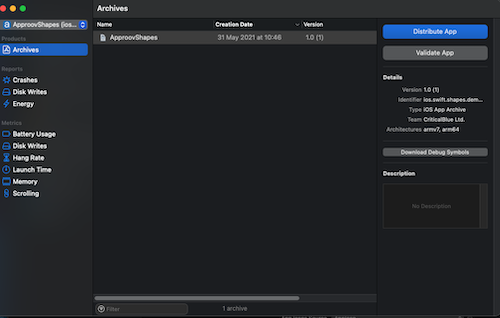
Xcode has archived the source files and linked the libraries by producing an xcarchive file which is a collection of files, binaries, debug symbols and other files from which an actual ipa file can be obtained. From there you should click Distribute App and select one of the options, App Store Connect to submit to the app store or one of the others. Irrespective of the selection, you can always recall the Organizer by selecting the menu Windows and then Organizer and if you select the same archive you can generate another ipa file or make another submission to the App Store.
Registering an App
The Approov service is designed to only send a valid Approov token to apps that have been registered. Registration indicates that Approov has captured the fingerprint of a good instance of your app and should, subject to various other checks and conditions, deliver valid Approov tokens to any identical app instance. Any other app cannot receive valid Approov tokens and will therefore be unable to access the backend API services that you have protected with Approov.
When you release a new version of your app to the app store, you will need to register the final version that will be published. Multiple different versions of the app registration may be live simultaneously to support end users who are running different versions of the app. In general it may take some time for users’ apps to be updated to the latest version. You may also wish to register various versions of the app during the development and test process.
In order to register an app you need the app package that is to be run. This is either an .apk or .aab file (Android) or an .ipa file (iOS). An app being registered must have the Approov SDK integrated within it or else the registration will fail.
- Android
- iOS
approov registration -add your-app.apk
approov registration -add your-app.ipa
The command output indicates that an overall signature of the app, its name and its version have been extracted and are available for viewing in the list of all registrations for the account.
- Android
- iOS
registering app
 Ac15BRFWqxn79dGsjOdVJXVqBQQ64ZWTAuKdrzRC9hc=your.app.com-2.0[3]-1042  SDK:Android(2.5.0)
registration successful
registering app
 DRJNqt37tsdHwb9FKFT80dPqXlOHqZnZy68zAiVSsvM=your.app.com-2.0[3]-1041  TeamID:953D8M53YN  SDK:iOS(2.5.0)
registration successful
The overall signature consists of a signature hash of aspects of the application, the application package name, application version information, and the ID of the Approov SDK that is integrated within it. Finally, information about the type and version number of the Approov SDK used is also provided.
Once an app is registered, it should be possible to get valid Approov tokens for it, assuming there are no other issues with the device or its runtime environment (for instance, a debugger being active) that prevent it from receiving a valid token. By default, an app registration is permanent and will remain in the Approov cloud database until it is explicitly removed. Permanent app registrations should be used to identify apps that are being published to production.
It is only possible to have a maximum of 250 registrations at any one time.
Android Registration Considerations
If you are registering an Android APK that will be released using Google Play App signing then you must use the -playSigned option, and add your app signing certificates. If the app is in the form of a .aab then this option is set implicitly.
If you are registering an Android App Bundle (.aab file) then the approov tool needs access to bundletool. The bundletool is a command line tool written in Java and distributed as a .jar. To use it you will need Java installed, although it is likely you have it installed already if you are developing Android apps. It can be installed from here. Once you have Java installed you can download the latest version of the bundletool from here. If you have saved the bundletool-all-<version>.jar to the current directory then try a command such as:
java -jar bundletool-all-1.15.6.jar version
Substitute the filename to the version you have. This confirms that it is running correctly.
When you make a registration of a .aab Android app the approov tool needs to be able to invoke the bundletool and therefore needs to know its location. This can be done by specifying the -bundletool option providing its path for all registrations of app bundle .aab files. Alternatively the path of the bundletool jar file can be set in the environment variable APPROOV_BUNDLETOOL.
You must install the .jar version of the bundletool rather than a direct command line version.
If you are registering an Android app that you intend to publish to the Play Store, you must ensure that it is signed with a V2 signature (or later) or else the registration will not match the Play Store version and it will not receive valid Approov tokens.
If your Android app bundle includes other native libraries that include architectures that are no longer supported, then you may wish to remove them from your build and only include the relevant architectures using ABI Filters. For instance, you can use abiFilters 'armeabi-v7a', 'arm64-v8a', 'x86', 'x86_64' to restrict to Approov supported architectures only. We have had reports that, without this filtering, certain devices may receive a package of native libraries without the libapproov.so SDK thereby breaking the Approov integration.
iOS Registration Considerations
Note that if your iOS app uses extensions then you may use the -appex option when you register to add those too. They may have different package names and version numbers, and will show up as different entries in the overall registration list. It is assumed that extensions will always share the same Approov SDK version.
The signature extracted for an iOS registration only includes the version number and not the build number. Thus all builds of the same version will share the same registration. You should thus be careful not to remove the registration for a previous build of the same version, as this will also remove the registration for all builds of that version. Instead you should employ Temporary Registrations and then make any released build registration permanent. This will upgrade any pre-existing temporary registration to be permanent, and any others will expire naturally.
watchOS Registration Considerations
Approov supports watchOS apps if they are released inside a companion iOS app. The Approov SDK for watchOS is different from that used by an iOS app, and must be integrated into the watchOS project.
When building the companion iOS app for release, the watchOS app will be integrated within the same package.
To register the watchOS app, you must use the -watchOS option when registering the overall .ipa. The flag causes the registration of the embedded watchOS app not the companion app. If the Approov SDK is also integrated with the companion app then you should use a second registration call passing the same .ipa but without the -watchOS flag. (Using app signing certificates avoids this subtlety.)
Registration From Device
This feature allows a registration to be made when access is not available to the original IPA or APK. This might be necessary if an app registration has been accidentally deleted and the original IPA or APK file is no longer available, for instance. It leverages the getting specific device information capability. Please follow those instructions in order to be able to get the detailed information for a running device, including its app registration information.
You can then add the registration as follows:
approov registration -addFromDevice qZka0yfv+ExvOq3PRh6pGw==
This adds the registration associated with the app that is running on the device. Note that is is also possible to use the -expireAfter option to create a temporary registration using this method.
It is possible to use the -playSigned option to provide a registration that is compatible with an Android app that uses Google Play signing. An app released as an App Bundle will always use Google Play signing. Note that in this case you must also add your app signing certificates.
Registration Cloning
A registration cloning option is provided to support a use case employed by certain Approov customers. In this use case the developer and publisher of the app using the Approov SDK (developer) is distinct from the publisher of the API that is protected by Approov (controller). Both the developer and the controller must have Approov accounts. The developer is responsible for managing app registrations. The controller is responsible for Adding API Domains and also Dynamic Pinning. Only the controller is able to view and manage the secret keys associated with their APIs.
To use this flow, an admin role holder of the controller account should create a delegate user role for use by the developer. The developer can then use this role to:
- Download the controller's Initial SDK Configuration for use in their apps
- Add and remove registrations of their apps to and from the controller's account. (They do this by cloning app registrations from their account into the controller's account. Apps that were previously registered but have since been deleted by the developer are removed from the controller's account at that same time that the new ones are added. The developer cannot modify any app registration that they did not add to the controller's account. The controller can always remove any app registration from their own account.)
The developer uses the configuration obtained from the controller's account to initialize the SDK in the app. Since the account that the app uses depends on the SDK configuration with which it is initialized, this flow means that the Approov SDK will use the controller's account when it is obtaining tokens to include on its API requests. Typically, the app will provide a way to dynamically select which initial configuration is used, allowing the app to either use the developer's or the controller's account. In general, there might be several possible controller accounts for a single app.
While in app development, the developer can use Approov in the normal way using their own Approov account. When they do a release for use with the controller's APIs, either for testing or production, then they will need to copy the active app registrations from their account into the controller's account. In the case where a single app is to be used by various controllers, the app developer will need a delegate role provided by each one of those controller accounts. If the app has the ability to dynamically switch which controller account is to be used, then the SDK must be reinitialized dynamically to select the appropriate one.
If the developer has initialized the delegate role(s) into their Approov CLI then the registrations can be cloned as follows:
approov registration -cloneToAllDelegateAccounts
This lists all of the accounts that will be cloned to, which you must confirm:
registrations will be cloned to the following accounts:
  accountA
  accountB
WARNING: this will have an immediate impact on production of the target accounts
ATTENTION: If you wish to continue then please type YES and return: YES
cloning 3 permanent registrations into account accountA
cloning 3 permanent registrations into account accountB
If the delegate roles are password protected then you may be asked for each of the passwords during the cloning operation. If you are unable to provide the correct password then the cloning for that particular account is skipped.
In the example, three registrations are cloned to two different accounts. Note that only permanent registrations are cloned. Note also, due to the complete cloning of all active app registrations, if a new API controller account is introduced, with a new delegate role, then all registrations (including historic ones) are easily cloned with this single command. If a registration was previously cloned, but then subsequently removed, then the next clone operation will also remove it from the target delegate account.
When the registrations are listed in the delegate account they are associated with the name of the app developer account from which they were cloned. This allows the API controller to easily identify the apps that were contributed by different delegate roles.
If you only want to clone to a subset of all your delegate role accounts, then you can do this as follows:
approov registration -cloneToAccounts accountA
This option takes a comma separated list of the accounts into which you wish to clone your registrations.
The maximum number of registrations that may be cloned in this way is 50. A warning is provided if the maximum number of registrations in the target account is exceeded.
This command only clones the app registrations. If you are using Google Play signing then you will also need to set the app signing certificate in the target account. The delegate role provides rights to do this. Note also that if you are relying on DeviceCheck, AppAttest or PlayIntegrity this information can also be set using a delegate role.
Special Library Registration
By default, the SDK library ID for an app is determined by the approov tool that analyzes the app to be registered. In some cases though an Approov SDK may itself be embedded inside another SDK within the app. In this case the tool cannot automatically locate the SDK and, in any case, it is possible for there to be more than one Approov SDK in the app.
In such a case you must use the specific ID of the Approov SDK that you want to register with. This can be specified with an additional command line option as follows, for library ID 1056 in this case:
approov registration -add your-app.apk -libraryID 1056